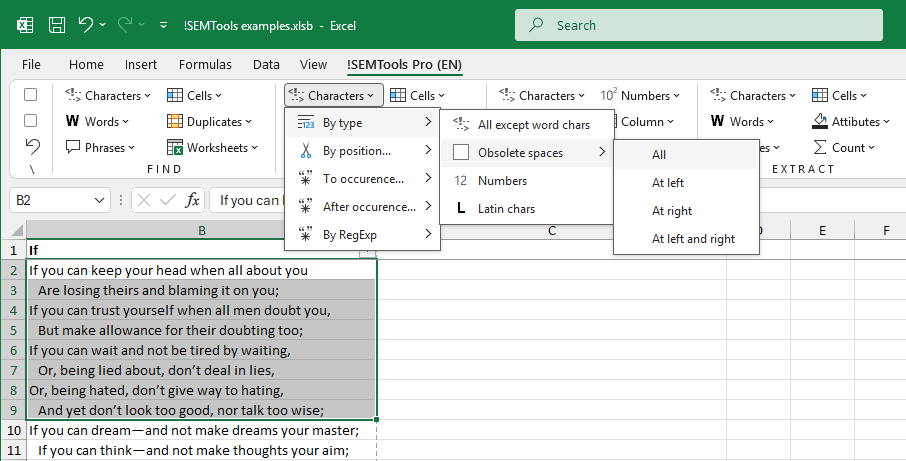
The biggest frustration with extra spaces is that they’re invisible.
Extra spaces between words can sometimes be spotted by a wider gap. A space at the beginning of a line is also fairly easy to catch, since the text is slightly shifted away from the left edge of the cell. But spaces at the end of a line—or cells that consist entirely of spaces—are much harder to notice.
Why Extra Spaces Are a Problem
Extra spaces can interfere with a variety of tasks:
- When comparing cells — for example, during duplicate detection or when comparing two lists — even a single extra space makes the values appear different.
- In pivot tables, identical strings should collapse into a single row. A difference of one space prevents this.
- Functions like VLOOKUP or the INDEX-MATCH combination also compare strings. An unnoticed space leads to mismatches.
Most of the time, extra spaces serve no purpose. So it’s a common task to remove them — but without breaking valid spacing between words.
Ways to Remove Extra Spaces
I know three effective methods for removing extra spaces. Let’s look at each one.
Using the Find and Replace Tool
This approach won’t remove leading or trailing spaces. So if you need to clean those too, skip to the other options.
Still, many sites recommend it. Here’s how:
- Press Ctrl + H to open the Replace dialog;
- In “Find what”, enter two spaces (press space twice);
- In “Replace with”, enter one space;
- Click “Replace All”. Repeat until Excel says “No more replacements”.
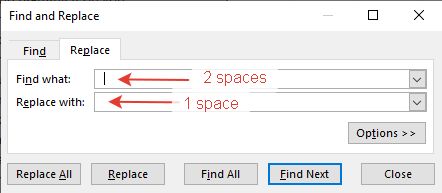
This is necessary because some lines might contain three or more spaces in a row.

Sometimes you can see this message, clearly seeing that extra spaces don’t go away. This might be due to other characters that look just like a space character, but have another code behind them. In this case try copying and replacing them with a regular space first, and then replace 2 spaces by 1.
Using the TRIM Function
TRIM is a built-in Excel function that removes:
- extra spaces after the last word,
- spaces before the first word,
- and replaces all double (or more) spaces between words with a single space.
It requires you to create a helper column and apply the function. Example:
=TRIM(A1)
Using the !SEMTools for Excel add-in
If you prefer not to mess with formulas or helper columns, try this:
- Select your range,
- Click the “Remove Extra Spaces” button in the !SEMTools menu,
- Done!

As you can see, there are options for custom deletion. If you only need to delete leading or trailing spaces (or both leading and trailing, but not the ones between words) – you can use these tools instead of deleting all.
Remove Trailing Spaces Only
Let’s say you only want to remove spaces at the end of the line — but keep everything else intact, even if there are multiple spaces in the middle. Use this formula (available in !SEMTools or Google Sheets):
=REGEXREPLACE(A1, "\s+$", "")This regular expression replaces one or more spaces at the end of the string with nothing.
Remove Leading Spaces Only
To remove only spaces at the beginning of the string, use this:
=REGEXREPLACE(A1, "^\s+", "")Reminder: Only the latest version of Excel 365 supports this function. But if you’re using !SEMTools, these formulas will work — no coding or setup required. Even the free version of the add-in supports them!
Download the !SEMTools add-in and start cleaning up extra spaces and line breaks without complicated formulas.
!SEMTools helps you solve this — and hundreds of other tasks — in just a few clicks.