When working with text, you may often need to take the last characters from cells in a column and place them into a neighboring column. Or, you might want to keep only the last 2, 3, 4... N characters directly in the original cells.
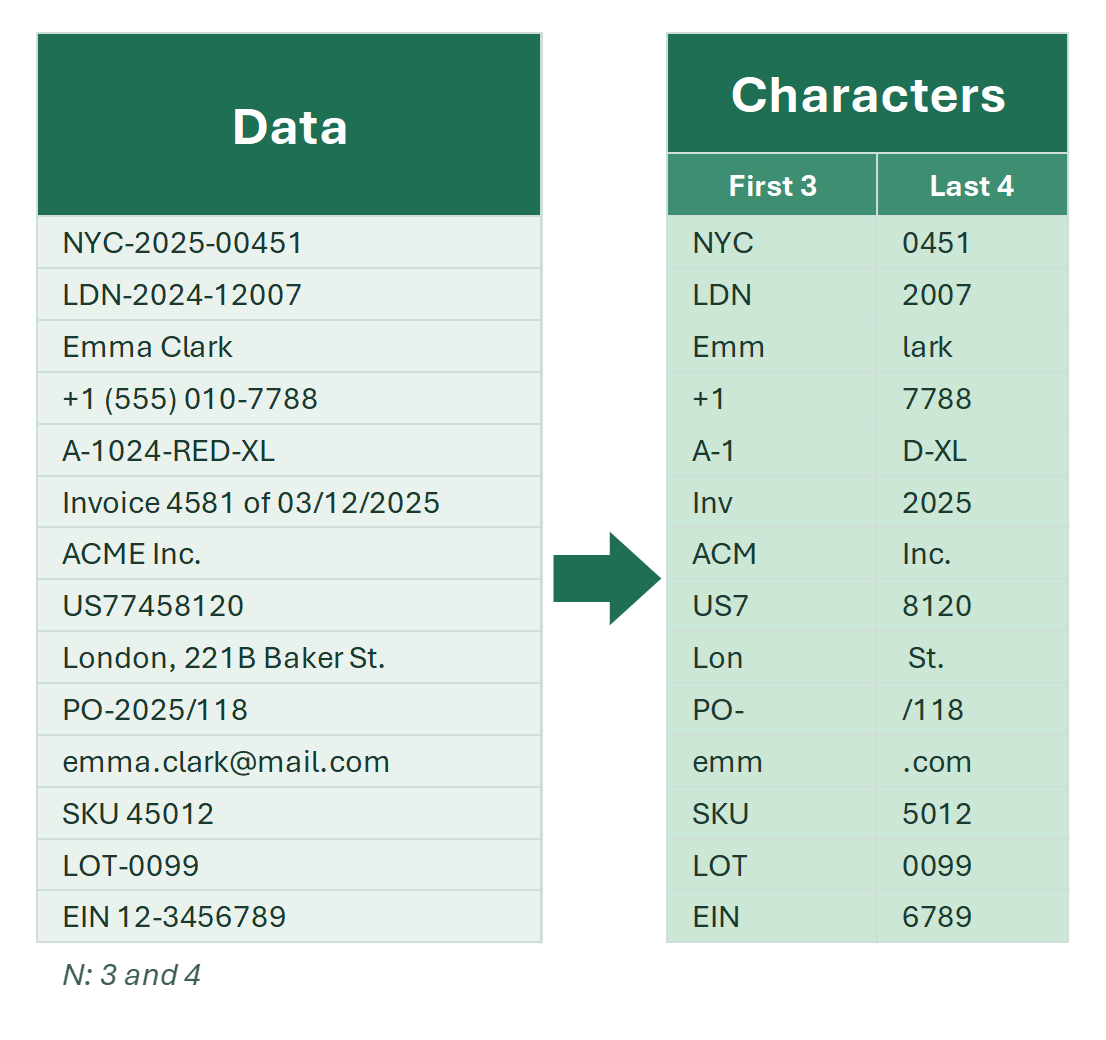
Unfortunately, Excel does not have a built-in tool to do this in just a couple of clicks — but you can use a formula.
Last N characters — Excel formula
It’s fairly simple to display the last character or last N characters from a cell using a formula. The RIGHT function can help.
Example of extracting a single character from cell A1:
=RIGHT(A1,1) | A | B | C | D | E | |
|---|---|---|---|---|---|
| 1 | Text | Last 1 | Last 3 | Last 5 | As a number |
| 2 | Order #48213 | 3=RIGHT(A2,1) | 213=RIGHT(A2,3) | 48213=RIGHT(A2,5) | 48213=IFERROR(--RIGHT(A2,5),RIGHT(A2,5)) |
| 3 | SKU-2026-XL | L=RIGHT(A3,1) | -XL=RIGHT(A3,3) | 26-XL=RIGHT(A3,5) | 26-XL=IFERROR(--RIGHT(A3,5),RIGHT(A3,5)) |
| 4 | report.xlsx | x=RIGHT(A4,1) | lsx=RIGHT(A4,3) | .xlsx=RIGHT(A4,5) | .xlsx=IFERROR(--RIGHT(A4,5),RIGHT(A4,5)) |
| 5 | 42 | 2=RIGHT(A5,1) | 42=RIGHT(A5,3) | 42=RIGHT(A5,5) | 42=IFERROR(--RIGHT(A5,5),RIGHT(A5,5)) |
If N is larger than the text, RIGHT returns the whole cell (“42”). RIGHT always returns text; the double minus turns digits into a number, and IFERROR keeps text that isn’t a number.

Keep the last N characters in cells in one click
Since formulas take time and always require creating additional columns, I developed dedicated tools for my add-in.
They are in EXTRACT → Characters → By position → Last N on the !SEMTools tab. You simply enter the number of characters to extract into the input box provided.
Advantages of this approach:
- The tool will process all selected data. You can select:
- a single cell,
- multiple cells,
- an entire column,
- or even multiple non-contiguous ranges
- You can undo the operation in one step
- The “Output result to the right” option lets you place the extracted data into neighboring column(s) instead of replacing the original
Example below:

These tools are available in the full version of the add-in, but you can try them for free.
P.S. After extracting the last characters into a neighboring column, you might also want to remove the last N characters from the original column.