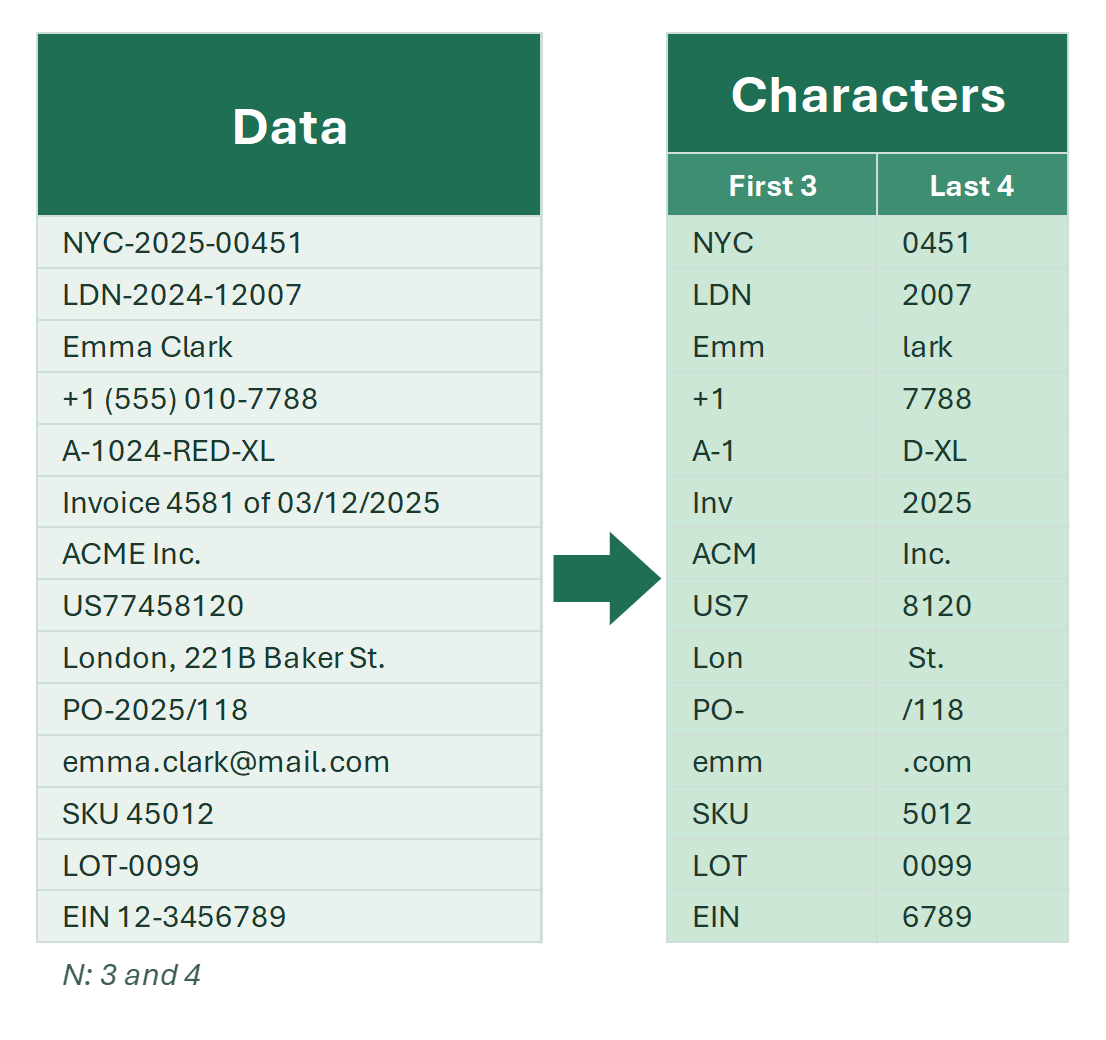
The simplest task is to take the first character from a cell and place it into a neighboring column. Or, keep only the first 2, 3, 4... N characters from it.
For example, in strings of variable length, the first 6 characters may be a specific numeric code that you need to copy into a separate column.
Or it might be part of another task, such as making the first letter of a cell uppercase, which requires extracting it from the cell first.
Let’s review all the known solutions, complete with examples.
First N characters — Excel formulas
Extracting the first character or the first N characters from a cell with a formula is very easy. There are even two Excel functions that can do it:
Here’s how formulas look when extracting the first N characters from cell A1. Replace N with your own number:
=LEFT(A1,N) =MID(A1,1,N) | A | B | C | D | |
|---|---|---|---|---|
| 1 | Text | LEFT 6 | MID 1–6 | First 2 (LEFT 2) |
| 2 | 482913 Blue widget | 482913=LEFT(A2,6) | 482913=MID(A2,1,6) | 48=LEFT(A2,2) |
| 3 | A7 cable, 2 m | A7 cab=LEFT(A3,6) | A7 cab=MID(A3,1,6) | A7=LEFT(A3,2) |
| 4 | 2026-10-22 report | 2026-1=LEFT(A4,6) | 2026-1=MID(A4,1,6) | 20=LEFT(A4,2) |
With a start of 1, MID gives the same result as LEFT. MID is handy when the start is calculated, for example the first 6 characters after a prefix: =MID(A2,FIND(" ",A2)+1,6).
The key difference between the first and second function is that MID has a parameter for the starting position, while LEFT does not. This means that if you calculate the position of a certain character in a cell, you can use MID to extract it even if it’s not at the very beginning of the string.
Examples:
- extract text after numbers
- extract the first N numbers
- make the first letter of a cell uppercase
Split a column by number of characters
You can also get the first N characters by splitting the column based on the number of characters. The first N will remain, and the rest will be moved to the next column to the right. You can split into multiple columns — Excel has no limit on the number of columns created.
Compared to formulas, splitting has its pros and cons depending on the situation:
- splitting into columns does not keep the original column
- it’s a one-time action, unlike formulas which update when data changes
- one procedure can create multiple columns instantly
- splitting direction is always to the right
- if there’s data to the right, it can be overwritten unless you cancel or create empty columns first
Extract first characters using Flash Fill
Flash Fill is a great Excel feature. The process is simple:
- Fill in a couple of cells in the neighboring column manually
- By the time you start typing the third cell, Excel may suggest Flash Fill
- If you agree, press Enter
However, use this with caution. The algorithm behind Flash Fill is not shown, so results may not always match your expectations. Usually, you can “teach” the algorithm to understand what you want.
Extract first characters with regular expressions
In Google Sheets, you can use REGEXEXTRACT to select characters based on regular expressions — it’s been available there for a long time.
In Excel, regular expressions became built-in only recently: Excel 365 has the REGEXEXTRACT, REGEXTEST and REGEXREPLACE functions. In Excel 2021 and earlier, they are available only through VBA, which is accessible mainly to advanced users who can code.
To make this powerful syntax available to everyone, I added regular expression support into formulas and tools in my !SEMTools add-in.
More details here: Regular expressions in Excel and examples. Below is an example image of formulas that can extract the first N characters — including letters or numbers separately — from any cell.
These functions are available completely free when you have the !SEMTools for Excel add-in connected, even in the starter version.
| A | B | C | D | |
|---|---|---|---|---|
| 1 | Text | Leading digits | Leading letters | First word |
| 2 | 482913 Blue widget | 482913=REGEXEXTRACT(A2,"^\d+") | #N/A=REGEXEXTRACT(A2,"^[A-Za-z]+") | 482913=REGEXEXTRACT(A2,"^\S+") |
| 3 | A7 cable, 2 m | #N/A=REGEXEXTRACT(A3,"^\d+") | A=REGEXEXTRACT(A3,"^[A-Za-z]+") | A7=REGEXEXTRACT(A3,"^\S+") |
| 4 | 2026-10-22 report | 2026=REGEXEXTRACT(A4,"^\d+") | #N/A=REGEXEXTRACT(A4,"^[A-Za-z]+") | 2026-10-22=REGEXEXTRACT(A4,"^\S+") |
^ anchors the pattern to the start of the cell, so these patterns take the leading run of digits, letters or non-space characters. With no match, Excel 365 returns #N/A; the !SEMTools REGEXEXTRACT returns an empty cell.
Keep the first / last N characters in one click
Finally, the !SEMTools panel includes tools that let you quickly and easily select the first or last characters from cells.
You can select a single cell, multiple cells, an entire column, or even several non-contiguous ranges — the tool will process all selected data. You can also undo the operation in one step.
Path: EXTRACT → Characters → By position → First N or Last N. The add-in asks for the number of characters.
If the “Output to the next column” checkbox is on, your original data stays unchanged, and the extracted characters are placed into neighboring column(s).
See the demo below:
These tools are available in the full version of the add-in, but you can try them for free.
Click the button below to download and connect the add-in to your Excel — it only takes a couple of minutes.
If you’re on this page, you probably face similar Excel tasks often.
The !SEMTools add-in includes hundreds of one-click solutions for Excel!