Counting characters in Excel is often essential — the only question is which approach to use. The right method depends on your scenario and constraints.
When you need to count characters in cells
- A per-cell character limit must not be exceeded.
- No per-cell limit, but there’s a total character cap across several cells.
- A minimum character length is required.
- You must limit how many times specific characters appear (e.g., no more than one “!” per cell).
Below are practical options for each case.
Character count in a single cell — formula
LEN is the go-to function for counting characters in a cell:
=LEN(A1)
| A | B | |
|---|---|---|
| 1 | Text | Length |
| 2 | Excel 365 | 9=LEN(A2) |
| 3 | Remove extra spaces | 19=LEN(A3) |
| 4 | SKU-2026 ÉTÉ | 12=LEN(A4) |
Spaces and punctuation count too: “Remove extra spaces” has 19 characters, including the two spaces.
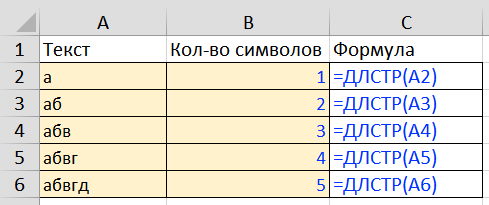
Count occurrences of specific characters in a cell
A classic trick: get the length of the original text with LEN, subtract the length after removing the target character(s) with SUBSTITUTE.
Example: count how many times the letter “e” appears in A1:
=LEN(A1)-LEN(SUBSTITUTE(A1,"e",""))
| A | B | |
|---|---|---|
| 1 | Text | Count of e |
| 2 | Excel 365 | 1=LEN(A2)-LEN(SUBSTITUTE(A2,"e","")) |
| 3 | Remove extra spaces | 4=LEN(A3)-LEN(SUBSTITUTE(A3,"e","")) |
| 4 | SKU-2026 ÉTÉ | 0=LEN(A4)-LEN(SUBSTITUTE(A4,"e","")) |
SUBSTITUTE is case-sensitive: the capital E in “Excel” and the accented É aren’t counted. For a case-insensitive count, wrap the text in LOWER: SUBSTITUTE(LOWER(A1),"e","").
When the set is larger (number characters, all English letters, etc.), use arrays.
Count number characters (0–9) in a cell
Counts each occurrence of 0–9:
=SUM(LEN(A1)-LEN(SUBSTITUTE(A1,{0,1,2,3,4,5,6,7,8,9},"")))
Alternative (no SUBSTITUTE), checks each character and counts numeric ones:
=SUMPRODUCT(--ISNUMBER(--MID(A1,ROW(INDIRECT("1:"&LEN(A1))),1)))
| A | B | C | |
|---|---|---|---|
| 1 | Text | SUBSTITUTE array | MID + ISNUMBER |
| 2 | Excel 365 | 3=SUM(LEN(A2)-LEN(SUBSTITUTE(A2,{0,1,2,3,4,5,6,7,8,9},""))) | 3=SUMPRODUCT(--ISNUMBER(--MID(A2,ROW(INDIRECT("1:"&LEN(A2))),1))) |
| 3 | Remove extra spaces | 0=SUM(LEN(A3)-LEN(SUBSTITUTE(A3,{0,1,2,3,4,5,6,7,8,9},""))) | 0=SUMPRODUCT(--ISNUMBER(--MID(A3,ROW(INDIRECT("1:"&LEN(A3))),1))) |
| 4 | SKU-2026 ÉTÉ | 4=SUM(LEN(A4)-LEN(SUBSTITUTE(A4,{0,1,2,3,4,5,6,7,8,9},""))) | 4=SUMPRODUCT(--ISNUMBER(--MID(A4,ROW(INDIRECT("1:"&LEN(A4))),1))) |
Both give the same result. The first removes each digit in turn and adds up the length differences; the second checks every character. In Excel 2019 and earlier enter the first one with Ctrl+Shift+Enter.
Count English letters (A–Z) in a cell
Use the ASCII range 65–90 (A–Z) with CHAR and ROW; wrap text with UPPER for case-insensitive counting:
=SUM(LEN(A1)-LEN(SUBSTITUTE(UPPER(A1),CHAR(ROW(INDIRECT("65:90"))),"")))
| A | B | |
|---|---|---|
| 1 | Text | Letters A–Z |
| 2 | Excel 365 | 5=SUM(LEN(A2)-LEN(SUBSTITUTE(UPPER(A2),CHAR(ROW(INDIRECT("65:90"))),""))) |
| 3 | Remove extra spaces | 17=SUM(LEN(A3)-LEN(SUBSTITUTE(UPPER(A3),CHAR(ROW(INDIRECT("65:90"))),""))) |
| 4 | SKU-2026 ÉTÉ | 4=SUM(LEN(A4)-LEN(SUBSTITUTE(UPPER(A4),CHAR(ROW(INDIRECT("65:90"))),""))) |
Codes 65–90 are the capital letters A–Z; UPPER makes the count case-insensitive. Accented letters like É are not in this range, so in row 4 only S, K, U and T are counted.
Count any letters (A–Z plus accented letters)
Letters change when toggling case; non-letters don’t. Compare each character’s UPPER vs LOWER version and count differences:
=SUMPRODUCT(--(UPPER(MID(A1,ROW(INDIRECT("1:"&LEN(A1))),1))<>LOWER(MID(A1,ROW(INDIRECT("1:"&LEN(A1))),1))))
| A | B | |
|---|---|---|
| 1 | Text | All letters |
| 2 | Excel 365 | 5=SUMPRODUCT(--(UPPER(MID(A2,ROW(INDIRECT("1:"&LEN(A2))),1))<>LOWER(MID(A2,ROW(INDIRECT("1:"&LEN(A2))),1)))) |
| 3 | Remove extra spaces | 17=SUMPRODUCT(--(UPPER(MID(A3,ROW(INDIRECT("1:"&LEN(A3))),1))<>LOWER(MID(A3,ROW(INDIRECT("1:"&LEN(A3))),1)))) |
| 4 | SKU-2026 ÉTÉ | 6=SUMPRODUCT(--(UPPER(MID(A4,ROW(INDIRECT("1:"&LEN(A4))),1))<>LOWER(MID(A4,ROW(INDIRECT("1:"&LEN(A4))),1)))) |
A character is a letter if its upper and lower case differ. Now É counts as a letter too: row 4 shows 6 instead of 4.
This counts letters across Latin alphabets, including many accented characters.
Count characters with !SEMTools (no formulas)
If you’d rather skip formulas, the !SEMTools procedure counts characters in a couple of clicks and (optionally) outputs results to the column on the right. Select an entire column if you like — the add-in will detect the used range automatically.
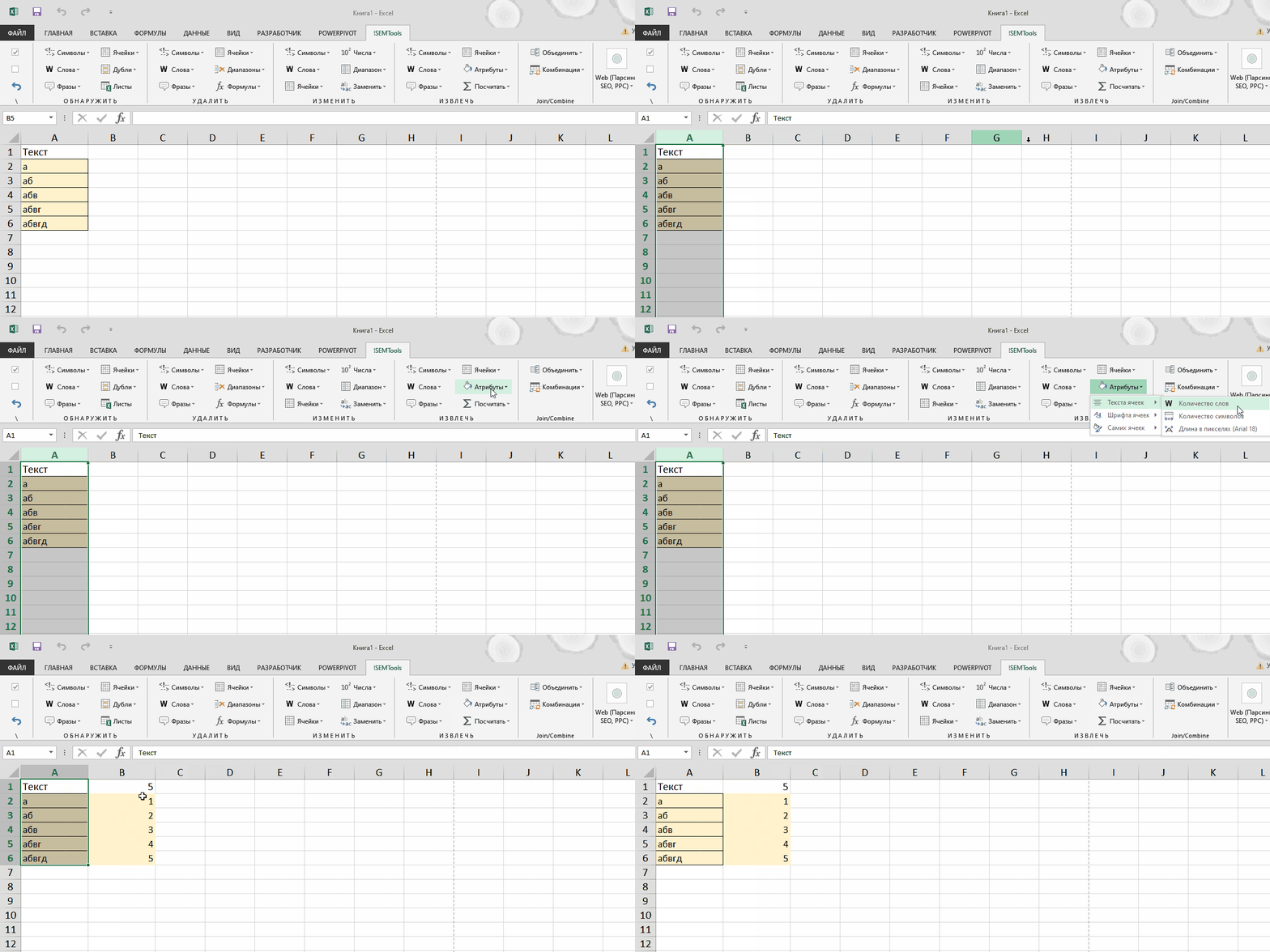
Sum the total characters across multiple cells
Need a total rather than per-cell counts? Use an array-aware sum of lengths:
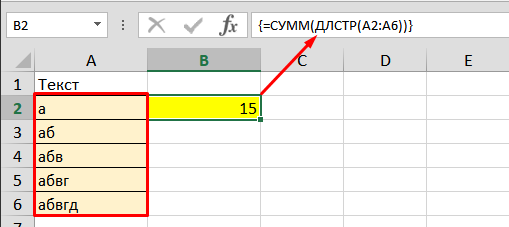
Formula (Excel 365+):
=SUM(LEN(A2:A6))
Legacy-compatible alternative:
=SUMPRODUCT(LEN(A2:A6))
| A | B | C | D | |
|---|---|---|---|---|
| 1 | Text | Length | Total | |
| 2 | Excel 365 | 9=LEN(A2) | 43=SUM(LEN(A2:A6)) | |
| 3 | Remove extra spaces | 19=LEN(A3) | 43=SUMPRODUCT(LEN(A2:A6)) | |
| 4 | SKU-2026 ÉTÉ | 12=LEN(A4) | ||
| 5 | abc | 3=LEN(A5) | ||
| 6 | 0=LEN(A6) |
Both formulas add up the lengths of all cells; an empty cell counts as 0. SUMPRODUCT works in any Excel version without Ctrl+Shift+Enter.
See also:
- Count cells with numbers in Excel
- Excel hotkeys (keyboard shortcuts)
- Array formulas in Excel
- Change case in several cells at once
Like this guide? Support the author — and save time. The !SEMTools add-in solves hundreds of Excel text tasks without complex formulas, so you can work faster.