In rare but important cases when working with Excel, you may need to change the order of words inside cells.
Sorting Data (Words and Numbers) in a Cell Alphabetically
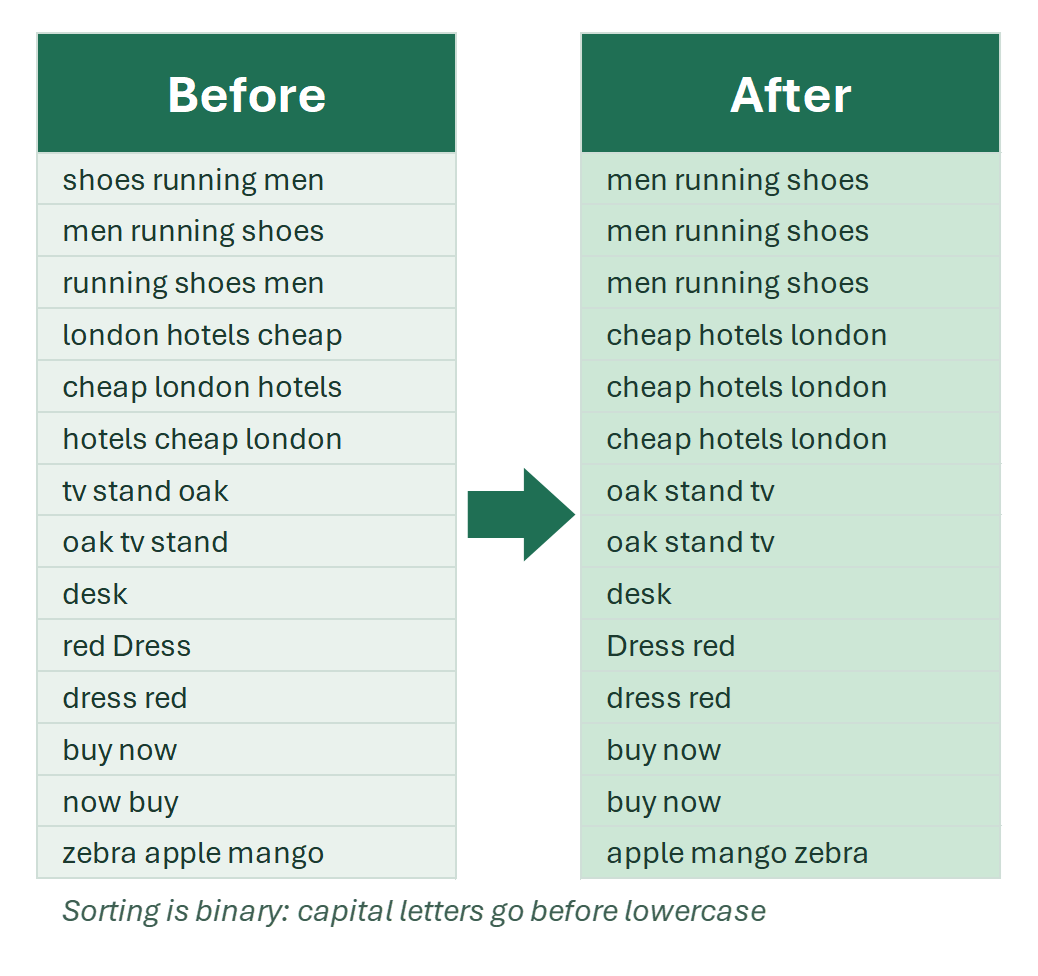
This can be useful, for example, when finding and removing hidden duplicates or when creating pivot tables. In such tasks, the order of words inside the cells does not matter.
Select the cells and click CHANGE → Cells → Sort words in cell A-Z. The words in every cell are rearranged alphabetically. The comparison is binary, so words that start with a capital letter come first.
Swap Words Inside an Excel Cell
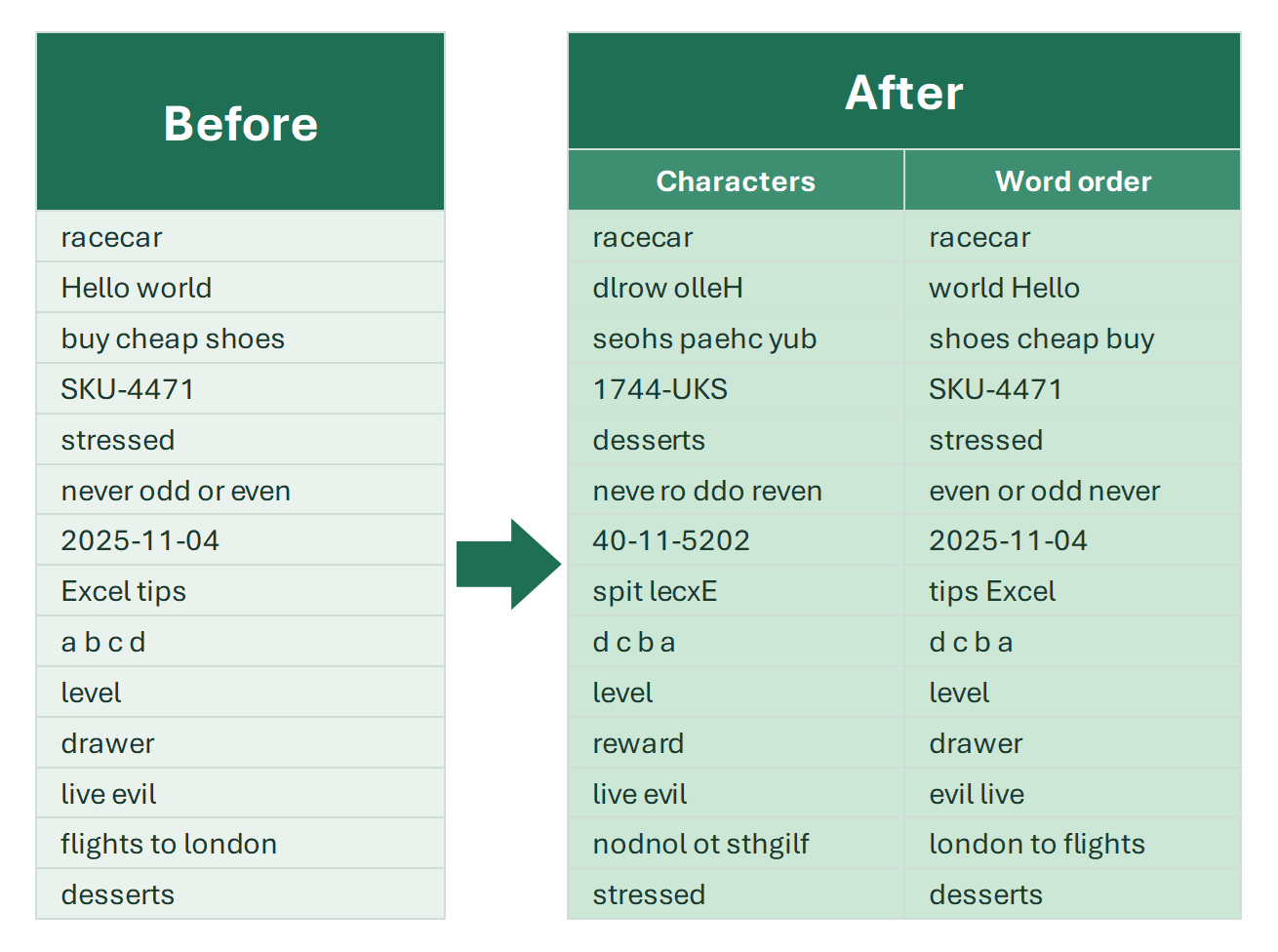
This usually applies when a cell contains two words. A common example is changing names from the “Last Name – First Name” format to the “First Name – Last Name” format. If the cell contains three or more words, they will also appear in reverse order.
Path: CHANGE → Cells → Flip → Word order. Two words swap places; with three or more, the whole order is reversed. Flip → Characters next to it reverses the letters instead.
Move Specific Words to the Beginning of a Cell
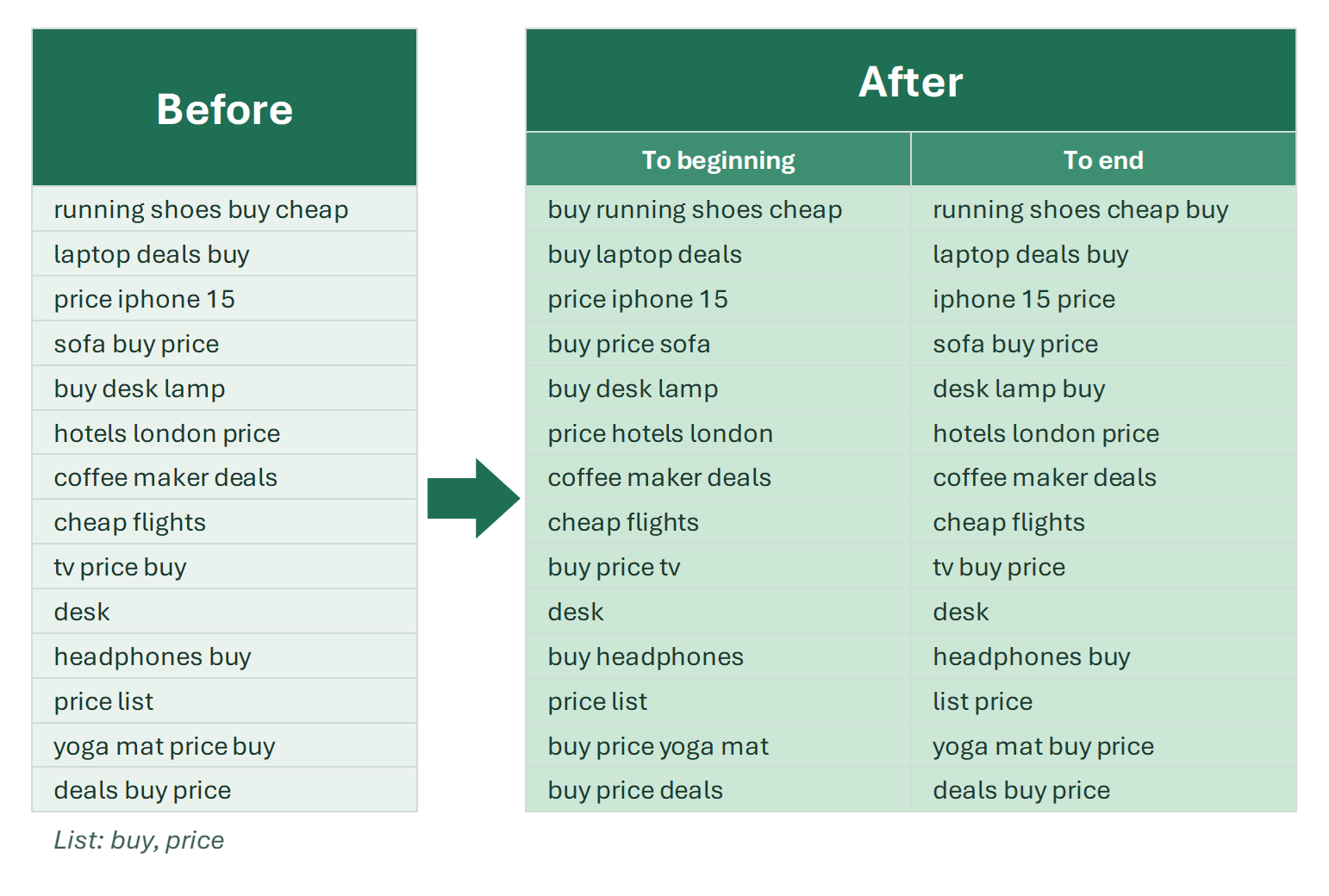
Sometimes phrases do not start with the words you want, but you already have a list of words that should appear at the beginning or end of the cell text.
The Change Words tool helps in such cases, as the task relates more to words than to cells—the position of certain words in the cell changes, rather than the cell as a whole.
Note that the procedure moves the words to the beginning of the cell in the exact order they appear in the list you specify! This makes the tool very convenient and gives you full control, allowing you to move multiple words from your list to the beginning of the cell in one step.
- Put the words to move in a separate column, in the order you want them at the start.
- Select the cells with phrases.
- Click CHANGE → Words → Move… → To cell beginning.
- When the add-in asks, select the list of words.
Move Words to the End of a Cell
Moving words to the end of a cell works just as easily. The feature is located right next to the previous one and works similarly, moving the words in the order they appear in your list:
Path: CHANGE → Words → Move… → To cell end, then select the list of words.
See also:
Need to quickly change the order of words in Excel cells without writing complex formulas? Install !SEMTools and do it in just a few clicks—saving time and effort for more important tasks!