When you work with text in Excel, sometimes all the letters are in the wrong case — everything is SHOUTING IN UPPERCASE, or all in lowercase with no capital letters.
For example:
- A customer list where all names are in lowercase:
john smith - Product titles in uppercase: FRESH STRAWBERRIES 1KG
- Blog posts where you want the first letter of every sentence capitalized.
Before you can sort, filter, or analyze such data, it’s useful to “normalize” the text — make the case consistent. This means changing all letters to lowercase, all to uppercase, or capitalizing them in a certain way.
Many automated report systems output data in one case only. If you need to fix it, you’ll need special functions or add-ins that can change text case quickly.
Excel case-changing functions
Excel includes three built-in functions for case conversion: LOWER, UPPER, and PROPER.
The first makes all letters lowercase; the second makes them uppercase.
All lowercase — formula
To make all letters lowercase, use the LOWER function. Like any function, it’s entered in a helper cell/column.
=LOWER(A1)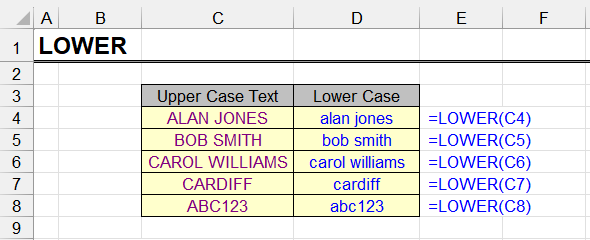
All uppercase — formula
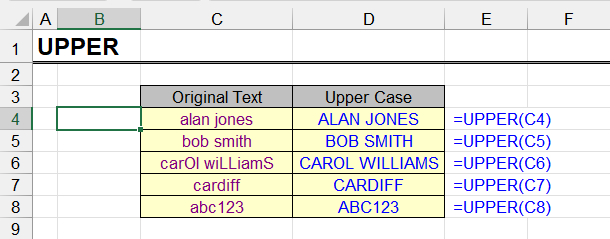
The UPPER function converts all letters to uppercase and leaves other characters unchanged. It also requires a helper column.
=UPPER(A1)Example:
When you’re done and no longer need the original data, remove formulas from the result cells first, then delete the helper column.
Capitalize the first letter after any non-letter
PROPER capitalizes every first letter that follows a non-letter character. Because of that, some words will be transformed incorrectly (e.g., “co-founder” → “Co-Founder”, “1st” → “1St”). On small datasets this is easy to fix manually; on large datasets it becomes tedious.
Also, PROPER lowercases all uppercase letters except the first, which can “break” abbreviations.
=PROPER(A1)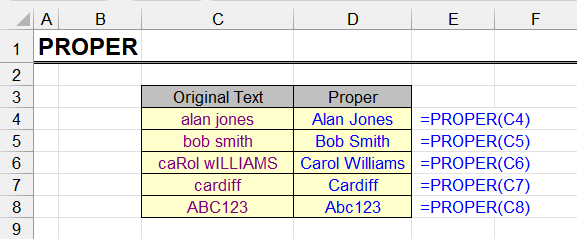
I cover these pitfalls — and how to avoid them — in a guide on making the first letter of a cell uppercase without changing the case of the rest (i.e., capitalizing the first letter, not just the first character). For related tools, see !SEMTools case utilities.
Change case in Excel with !SEMTools
Some case-related tasks (e.g., sentence case) are hard or impossible to solve cleanly with formulas alone.
The !SEMTools add-in includes all the most requested case tools.

Unlike built-in Excel functions, these procedures modify data in place — no helper columns. Select your data and run the commands from “Change → Characters → Case”.
Change word case
These procedures mirror Excel’s built-ins but are far more convenient because they apply changes directly to the selected range.
Uppercase → lowercase
Converting uppercase to lowercase is one of the most common tasks. Instead of building formulas, use the procedure to instantly convert all uppercase letters to lowercase in a couple of clicks.
Make everything UPPERCASE
Similarly, you can make all letters uppercase. The procedure turns lowercase into uppercase and leaves existing uppercase as is.

This is essentially an in-place equivalent of using UPPER, without helper columns.

Capitalize Each Word
An in-place equivalent of PROPER, applied directly to your selection.
Sentence case
Complex formula recipes on the web rarely solve the real task: detect sentences and make only the first letters of sentences uppercase/lowercase.
!SEMTools provides dedicated procedures so you can avoid array formulas, complex function chains, helper columns, and cleanup.

Start sentences with a capital letter
One click turns the first letters of sentences from lowercase to uppercase:

Start sentences with a lowercase letter
Sometimes you want the opposite (e.g., when extracting named entities by the “first letter is uppercase” signal but excluding sentence-initial words that are capitalized by grammar rather than being proper nouns).
Switching sentence starts to lowercase helps with such tasks.
Fix casing for place names

This !SEMTools feature is unique — you won’t find a comparable solution elsewhere.
It converts the first letters of geographic names (toponyms) from lowercase to proper case.
Acronym Detection

This tool automatically identifies acronyms and initialisms in text and standardizes their casing. When it encounters recognized forms—such as FBI, NASA, or MBA—it converts them to consistent uppercase usage throughout the document.
Working with case conversion or similar text tasks in Excel? !SEMTools performs sentence case, word case, proper casing for brands and toponyms — all in place, in a couple of clicks. Optimize your workflow today!