Duplicate lines inside an Excel cell are a typical side effect of joined descriptions and specs: “Free pickup today” twice in one cell, “2-year warranty” repeated. In Excel 365 the formula =TEXTJOIN(CHAR(10),TRUE,UNIQUE(TEXTSPLIT(A2,,CHAR(10)))) removes them. In any Excel version, and for the whole range at once, two !SEMTools tools do it: duplicates in each cell and duplicates in the whole selection.
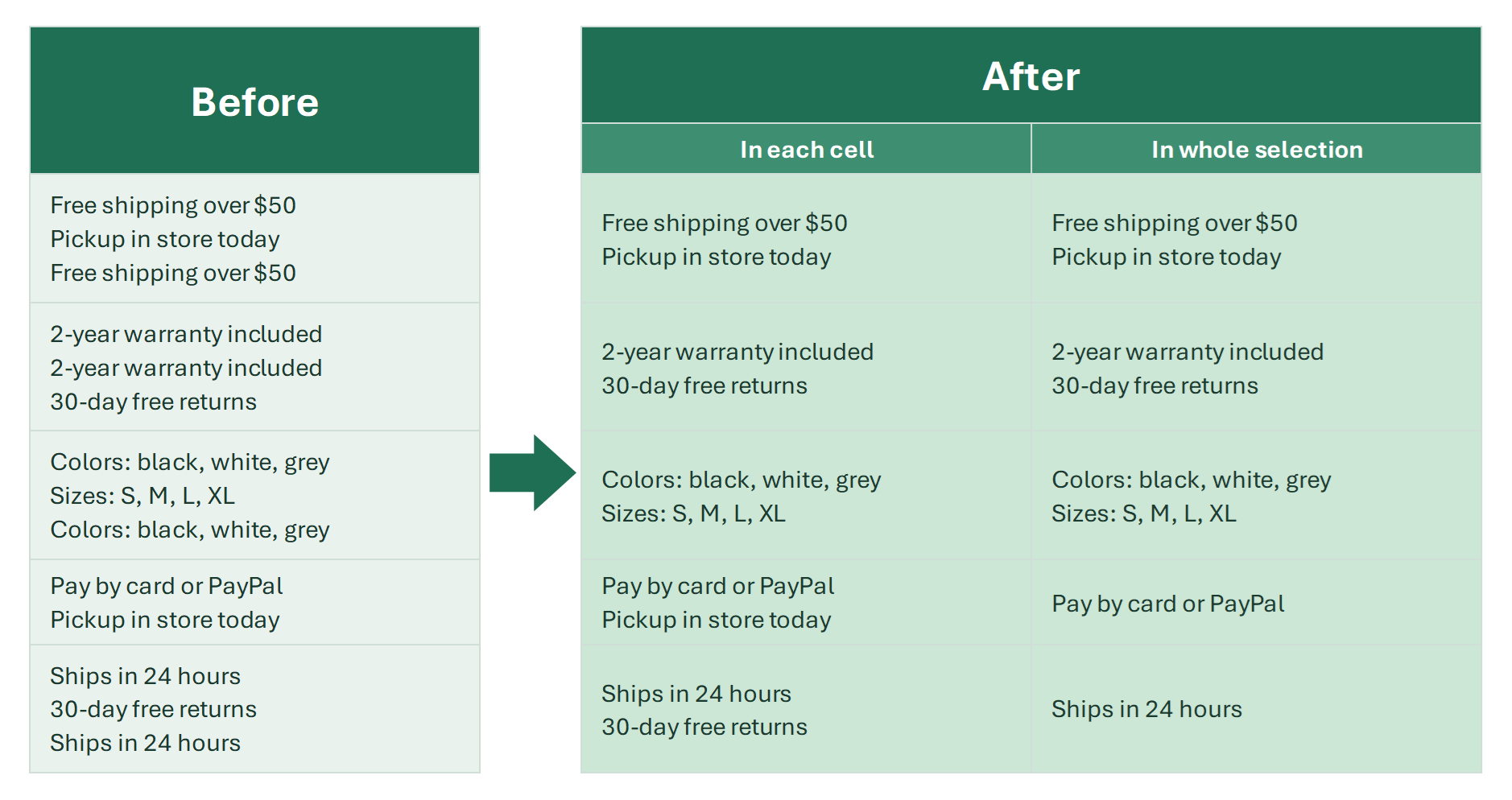
This is about lines of text inside one cell, separated by line breaks. To remove identical cells in a column, see how to remove duplicates in Excel; for repeated words in a phrase, see how to delete repeated words.
Where duplicate lines in a cell come from
- Several fields were joined with line breaks and two of them had the same text.
- Values from several rows were gathered into one cell with a fast pivot or TEXTJOIN, and identical items repeated.
- A supplier sent product cards where specs repeat, such as “Colors: black, white, gray” twice.
- The same shipping and returns terms appear in every card, while you need them only once.
The last case differs from the rest: the repeat isn’t inside one cell but across cells. !SEMTools has a separate mode for it, described below.
Remove duplicate lines in a cell with an Excel 365 formula
The formula splits the cell into lines, keeps the unique ones and joins them back. TEXTSPLIT with an empty second argument and CHAR(10) as the third puts the lines in a column, which is what UNIQUE expects:
=TEXTJOIN(CHAR(10),TRUE,UNIQUE(TEXTSPLIT(A2,,CHAR(10))))
The order is kept and the first occurrences stay. Two details people rarely mention: UNIQUE is not case-sensitive, so “Pickup” and “pickup” count as one line, while lines differing by a trailing space count as different. Add TRIM before UNIQUE if that gets in the way.
| A | B | |
|---|---|---|
| 1 | Description | Without duplicates |
| 2 | Free shipping over $50 Pickup in store today Free shipping over $50 | Free shipping over $50 Pickup in store today=TEXTJOIN(CHAR(10),TRUE,UNIQUE(TEXTSPLIT(A2,,CHAR(10)))) |
| 3 | 2-year warranty 2-year warranty 30-day returns | 2-year warranty 30-day returns=TEXTJOIN(CHAR(10),TRUE,UNIQUE(TEXTSPLIT(A3,,CHAR(10)))) |
Excel 365 and Excel 2024. Turn on Wrap Text for the result cells.
Remove duplicate lines in older Excel versions
Excel 2019 and earlier have neither TEXTSPLIT nor UNIQUE. Power Query is the only built-in route: split the column by line feed into rows, remove duplicates within each group and combine the rows back. It works, but it’s a dozen steps for a one-off cleanup.
Remove duplicate lines in cells in 2 clicks with !SEMTools
I split the task into two modes, because “duplicate” can mean two things. Both are in DELETE → Ranges → Lines inside cells.
Duplicates in each cell
Lines are compared only within their own cell; the first occurrence stays, later repeats go. Select the cells and click DELETE → Ranges → Lines inside cells → Duplicates in each cell.
Duplicates in the whole selection
A line counts as a duplicate if it already appeared in any previous cell of the selection. Cells are processed left to right, top to bottom, and single-line cells take part too. So “Pickup in store today”, first seen in the first cell, disappears from all the others.
- Lines are compared exactly: case and spaces matter.
- Empty lines are left alone; to remove them too, run removing empty lines in a cell afterwards.
- In the whole-selection mode, a cell whose lines all appeared above becomes empty.
- With “Output to the next column” ticked, the source stays as is.
Why duplicate lines aren’t removed: common mistakes
- Lines look the same but stay — they differ by a trailing space, a non-breaking space or case. Remove extra spaces first.
- The formula returned one line — the delimiter in TEXTSPLIT is in the second argument instead of the third, so the lines went into a row, not a column.
- More was removed than expected — the whole-selection mode was used instead of each cell.
Remove duplicate lines in a cell: FAQ
How do I remove duplicate lines within one Excel cell?
In Excel 365: =TEXTJOIN(CHAR(10),TRUE,UNIQUE(TEXTSPLIT(A2,,CHAR(10)))). In any version: the !SEMTools tool Lines inside cells → Duplicates in each cell.
Is UNIQUE case-sensitive?
No. For UNIQUE, “Pickup” and “pickup” are the same value. The !SEMTools tools compare lines exactly, case included.
How do I remove lines repeated across different cells?
Use the !SEMTools mode Duplicates in whole selection: each line stays only in the cell where it first appeared.
Remove duplicate lines inside cells, in each cell or across the whole selection, in a couple of clicks, in any Excel version and without formulas.
!SEMTools solves this and hundreds of other tasks in a couple of clicks!
Summary: how to remove duplicate lines in a cell
I hope you found what you were looking for on this page and were able to clean up the repeats in your multiline cells. In Excel 365, TEXTSPLIT + UNIQUE + TEXTJOIN gives a result that recalculates. In older versions, or when lines repeat across cells, !SEMTools is the faster way.
You may also be interested in related operations: remove duplicates in a column without shifting rows and find duplicates in Excel.