Empty lines inside an Excel cell appear when you paste text from emails, websites or CRM exports: double line breaks between paragraphs and extra ones at the start or end. You can remove them with Find and Replace (Ctrl+J in Find what), with a SUBSTITUTE formula or, in Excel 365, with =TEXTJOIN(CHAR(10),TRUE,TEXTSPLIT(A2,CHAR(10))). For the whole range at once, including breaks at the edges, it’s one !SEMTools button.
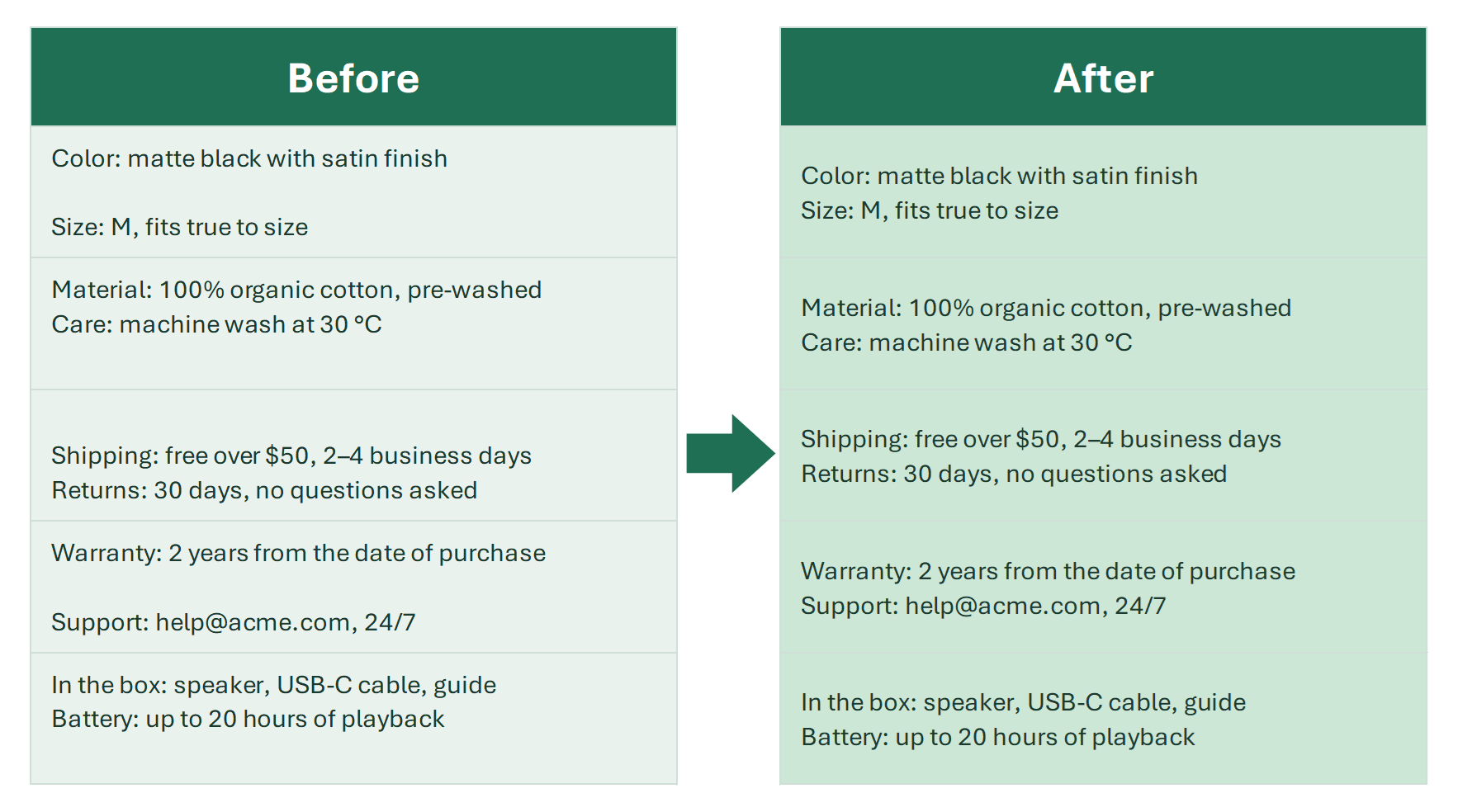
This is not about empty rows of the sheet. If you need to delete whole blank rows, see how to delete empty rows in Excel.
Where empty lines in a cell come from
A line inside a cell is text between line break characters. Excel inserts one when you press Alt+Enter, and gets them with pasted data. An empty line is two breaks in a row or a break at the very start or end. Common sources:
- Text copied from email or messengers, with a blank line between paragraphs.
- Exports from a CRM or an online store, with Description and Specs fields wrapped in extra breaks.
- Cells joined with line breaks when some of the source cells were empty.
- Files from other systems where a line break is CR + LF (CHAR(13) and CHAR(10)).
Remove empty lines in a cell with Find and Replace
In Find what, a line break is typed with Ctrl+J; the cursor seems to vanish, but the character is there. An empty line is two breaks in a row, so:
- Select the range and press Ctrl+H.
- In Find what, press Ctrl+J twice.
- In Replace with, press Ctrl+J once.
- Click Replace All until Excel finds nothing more to replace.
To be fair, the method can’t remove a break at the very start or end of a cell, and a line with only spaces doesn’t count as empty.
Remove empty lines inside a cell with a formula
Nested SUBSTITUTE works in any Excel version. CHAR(10) is the line break; the inner SUBSTITUTE also removes CHAR(13):
=SUBSTITUTE(SUBSTITUTE(SUBSTITUTE(A2,CHAR(13),""),CHAR(10)&CHAR(10),CHAR(10)),CHAR(10)&CHAR(10),CHAR(10))
TEXTSPLIT and TEXTJOIN in Excel 365
In Excel 365 it’s more reliable to split the cell into lines and join them back, skipping the empty ones; the TRUE in TEXTJOIN does the skipping, and TRIM turns space-only lines into empty ones:
=TEXTJOIN(CHAR(10),TRUE,TRIM(TEXTSPLIT(A2,CHAR(10))))
Side effect: double spaces inside lines collapse too. Breaks at the edges disappear on their own.
| A | B | |
|---|---|---|
| 1 | Text with empty lines | Without empty lines |
| 2 | Color: black Size: M | Color: black Size: M=TEXTJOIN(CHAR(10),TRUE,TRIM(TEXTSPLIT(A2,CHAR(10)))) |
| 3 | Warranty: 2 years Returns: 30 days | Warranty: 2 years Returns: 30 days=TEXTJOIN(CHAR(10),TRUE,TRIM(TEXTSPLIT(A3,CHAR(10)))) |
| 4 | Shipping: 2–4 days Pickup | Shipping: 2–4 days Pickup=TEXTJOIN(CHAR(10),TRUE,TRIM(TEXTSPLIT(A4,CHAR(10)))) |
Excel 365 and Excel 2024. Turn on Wrap Text to see the line breaks.
Remove empty lines in all cells in 2 clicks with !SEMTools
Formulas need a helper column, dragging and pasting values; Find and Replace needs several passes and ignores the edges. !SEMTools has a dedicated tool:
- Select the cells, a column or the whole range with multiline text.
- Click DELETE → Ranges → Lines inside cells → Empty.
- Empty lines go wherever they are: between lines, at the start and at the end.
- A line with only spaces counts as empty too.
- The text of non-empty lines isn’t changed.
- CR + LF breaks are converted to a normal line break.
- Single-line cells are left alone.
If identical lines are left after the cleanup, the next button removes them; see how to remove duplicate lines in a cell.
Why empty lines in a cell aren’t removed: common mistakes
- Find and Replace finds nothing — a space or another character is left in Find what; clear it with Backspace and press Ctrl+J again.
- An empty line stays — it contains spaces or a non-breaking space CHAR(160).
- All text ran into one line — CLEAN was used, and it removes every line break.
- The breaks aren’t visible after the formula — Wrap Text is off (Home → Wrap Text).
Remove empty lines in a cell: FAQ
How do I remove a blank line inside an Excel cell?
With Find and Replace: press Ctrl+J twice in Find what and once in Replace with, then Replace All. In Excel 365: =TEXTJOIN(CHAR(10),TRUE,TEXTSPLIT(A2,CHAR(10))).
How do I type a line break in Find and Replace?
Press Ctrl+J in the Find what box. Nothing shows up, but the line break is there.
How do I count the lines in a cell?
Use =LEN(A2)-LEN(SUBSTITUTE(A2,CHAR(10),""))+1: the number of line breaks plus one.
Remove empty lines inside multiline cells, between paragraphs and at the edges, with one click for the whole range and no helper columns.
!SEMTools solves this and hundreds of other tasks in a couple of clicks!
Summary: how to remove empty lines in a cell
I hope you found what you were looking for on this page and were able to tidy up your multiline text. For a quick one-off, Ctrl+J in Find and Replace works if there are no breaks at the edges. The TEXTSPLIT formula handles the edges too, but needs a helper column. For regular cleanup of exports, !SEMTools is faster: select, click, done.
You may also be interested in related operations: remove extra spaces and delete empty rows of the sheet.