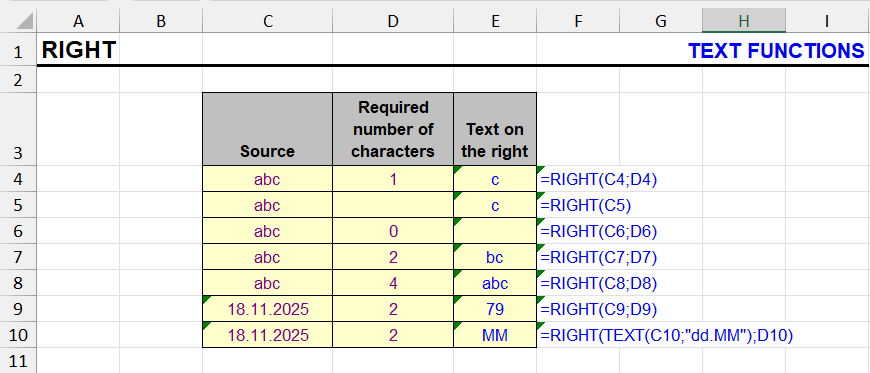
What does RIGHT do?
The RIGHT function returns the rightmost part of the referenced value, with the specified number of characters. In other words, it allows to extract the last N characters of a cell or another object to which it is applied.
The function is only useful when the number of characters to extract from the right side of the string is fixed and known in advance.
In practice, this number often needs to be calculated, which requires searching from the end of the string from right to left in a cell. Since there is no simple function for this (the SEARCH and FIND functions search from left to right), methods for solving this problem are covered in a separate article.
RIGHT syntax
=RIGHT(Text, Number_of_Characters)| A | B | C | |
|---|---|---|---|
| 1 | Text | Number_of_Characters | RIGHT |
| 2 | Report.xlsx | 4 | xlsx=RIGHT(A2,B2) |
| 3 | Report.xlsx | (omitted) | x=RIGHT(A3) |
| 4 | Report.xlsx | 50 | Report.xlsx=RIGHT(A4,B4) |
| 5 | Report.xlsx | 0 | =RIGHT(A5,B5) |
| 6 | Report.xlsx | -2 | #VALUE!=RIGHT(A6,B6) |
| 7 | 0.25 | 3 (cell shows 25%) | .25=RIGHT(A7,3) |
Omitted = 1 character, too many = the whole text, 0 = empty string, negative = #VALUE!. Formats are ignored: 25% is the number 0.25, so RIGHT takes “.25”. Use TEXT(A7,"0%") first if you need what the cell shows.
The second argument is optional. If omitted (not specified), the formula returns one last character.
If the second argument is equal to or exceeds the length of the string, the entire original cell text is returned.
If it equals zero - an empty string is returned.
If a negative number is specified, a #VALUE! error is returned.
RIGHT - formatting
As with LEFT, any numeric formats (date, date-time, currency, percentage) are converted to a natural number and only then to string format.
Therefore, for correct text extraction of part of the characters, the TEXT function may be needed.
RIGHT formula examples
The following table was used to extract a person's last name from a cell containing their first and last name.
- The FIND function finds the position of the space between the first and last name
- The length of the last name is calculated by subtracting the space position from the total text length of the cell, which in turn is calculated by the LEN function
- The RIGHT function then extracts the last name from the specified position
| A | B | C | D | |
|---|---|---|---|---|
| 1 | Full name | Space at | Last name | TEXTAFTER (365) |
| 2 | John Smith | 5=FIND(" ",A2) | Smith=RIGHT(A2,LEN(A2)-FIND(" ",A2)) | Smith=TEXTAFTER(A2," ",-1) |
| 3 | Maria Garcia | 6=FIND(" ",A3) | Garcia=RIGHT(A3,LEN(A3)-FIND(" ",A3)) | Garcia=TEXTAFTER(A3," ",-1) |
| 4 | Ann Lee | 4=FIND(" ",A4) | Lee=RIGHT(A4,LEN(A4)-FIND(" ",A4)) | Lee=TEXTAFTER(A4," ",-1) |
| 5 | Mary Ann Lee | 5=FIND(" ",A5) | Ann Lee=RIGHT(A5,LEN(A5)-FIND(" ",A5)) | Lee=TEXTAFTER(A5," ",-1) |
LEN minus the position of the space is the length of the last name. With three words the formula returns everything after the first space (“Ann Lee”). TEXTAFTER with −1 takes the text after the last space.

Other formula examples with RIGHT
The function is extremely in demand in various scenarios. Below is a list of articles that use formulas with the RIGHT function:
Remove first letter / first N characters at the beginning or end of a cell in Excel
Number and amount in words in Excel
Extract last characters from cells in Excel
See also:
Like the article? Help its author! Buy !SEMTools, it has lots of useful instruments to process text data.