To delete text after a character in Excel, the fastest no-formula way is Find and Replace: press Ctrl+H, type “,*” in Find what and leave Replace with empty. The formula =LEFT(A2,SEARCH(",",A2)-1) does the same, and in Excel 365 so does =TEXTBEFORE(A2,","). To cut after the first or the last occurrence, keeping the character or not, the !SEMTools tool does it in a couple of clicks.
If you want to move the tail to another cell instead of deleting it, see how to extract text after a character. The opposite task is covered in how to delete text up to a character.
When you need to cut text after a character
It’s almost always the same story: two values are glued together in one cell, you only need the first one, and the separator is the same down the whole column. For example:
- An address with details: “Austin, 512 Main St, Apt 4” → “Austin”.
- A name with a job title: “John Smith, Sales Manager” → “John Smith”.
- A SKU with a size: “SKU-4471/XL” → “SKU-4471”.
- A URL with tracking: “site.com/shop?utm_source=google” → “site.com/shop”.
- A category path: “catalog/furniture/sofas/oslo” → “catalog/furniture/sofas”, when you need the parent folder.
In the last example the boundary is the last slash, not the first. That’s the question to answer before you pick a method: which occurrence to cut at, and whether to keep the character itself.
Delete everything after a character with Find and Replace
An asterisk in Find what means “any number of any characters”, so “,*” matches the first comma and everything to the end of the cell:
- Select the column (otherwise the whole sheet is affected).
- Press Ctrl+H.
- Type “,*” in Find what and leave Replace with empty.
- Click Replace All.
Need to keep the comma? Type it into Replace with: “,*” becomes “,”, so the tail goes and the character stays. To be fair, the method has two limits: it only works on the first occurrence, and an asterisk or question mark in your data breaks the pattern unless you escape it with a tilde (“~*”, “~?”). More on that in how to find and replace an asterisk.
Remove text after the first occurrence with a formula
SEARCH returns the position of the first comma and LEFT takes everything to its left:
=LEFT(A2,SEARCH(",",A2)-1)
The −1 drops the comma itself; remove it to keep the comma. If a cell has no comma, SEARCH returns #VALUE!, so wrap the formula in IFERROR to keep the original text:
=IFERROR(LEFT(A2,SEARCH(",",A2)-1),A2)
TEXTBEFORE in Excel 365
Excel 365 and Excel 2024 have TEXTBEFORE. Its sixth argument says what to return when the character isn’t there:
=TEXTBEFORE(A2,",",,,,A2)
| A | B | C | |
|---|---|---|---|
| 1 | Path | After first “/” | After last “/” |
| 2 | catalog/furniture/sofas/oslo | catalog=IFERROR(LEFT(A2,SEARCH("/",A2)-1),A2) | catalog/furniture/sofas=IFERROR(LEFT(A2,SEARCH(CHAR(1),SUBSTITUTE(A2,"/",CHAR(1),LEN(A2)-LEN(SUBSTITUTE(A2,"/",""))))-1),A2) |
| 3 | blog/2025/11/news | blog=IFERROR(LEFT(A3,SEARCH("/",A3)-1),A3) | blog/2025/11=IFERROR(LEFT(A3,SEARCH(CHAR(1),SUBSTITUTE(A3,"/",CHAR(1),LEN(A3)-LEN(SUBSTITUTE(A3,"/",""))))-1),A3) |
| 4 | help/returns | help=IFERROR(LEFT(A4,SEARCH("/",A4)-1),A4) | help=IFERROR(LEFT(A4,SEARCH(CHAR(1),SUBSTITUTE(A4,"/",CHAR(1),LEN(A4)-LEN(SUBSTITUTE(A4,"/",""))))-1),A4) |
| 5 | home | home=IFERROR(LEFT(A5,SEARCH("/",A5)-1),A5) | home=IFERROR(LEFT(A5,SEARCH(CHAR(1),SUBSTITUTE(A5,"/",CHAR(1),LEN(A5)-LEN(SUBSTITUTE(A5,"/",""))))-1),A5) |
Click a cell to see its formula, or tick Formulas. The row without a slash keeps its original text.
Cut text after the last occurrence of a character
SEARCH always finds the first occurrence, so for the last one we count how many slashes there are (with LEN and SUBSTITUTE), swap the last one for a helper character and search for that instead:
=LEFT(A2,SEARCH(CHAR(1),SUBSTITUTE(A2,"/",CHAR(1),LEN(A2)-LEN(SUBSTITUTE(A2,"/",""))))-1)
CHAR(1) is used because it never appears in normal text. In Excel 365, instance number −1 means “first from the end”: =TEXTBEFORE(A2,"/",-1).
Delete text after the second or N-th character
Same idea, with your own instance number: =LEFT(A2,SEARCH(CHAR(1),SUBSTITUTE(A2,"/",CHAR(1),2))-1), or =TEXTBEFORE(A2,"/",2) in Excel 365. “catalog/furniture/sofas/oslo” becomes “catalog/furniture”.
Delete text after a character in 2 clicks with !SEMTools
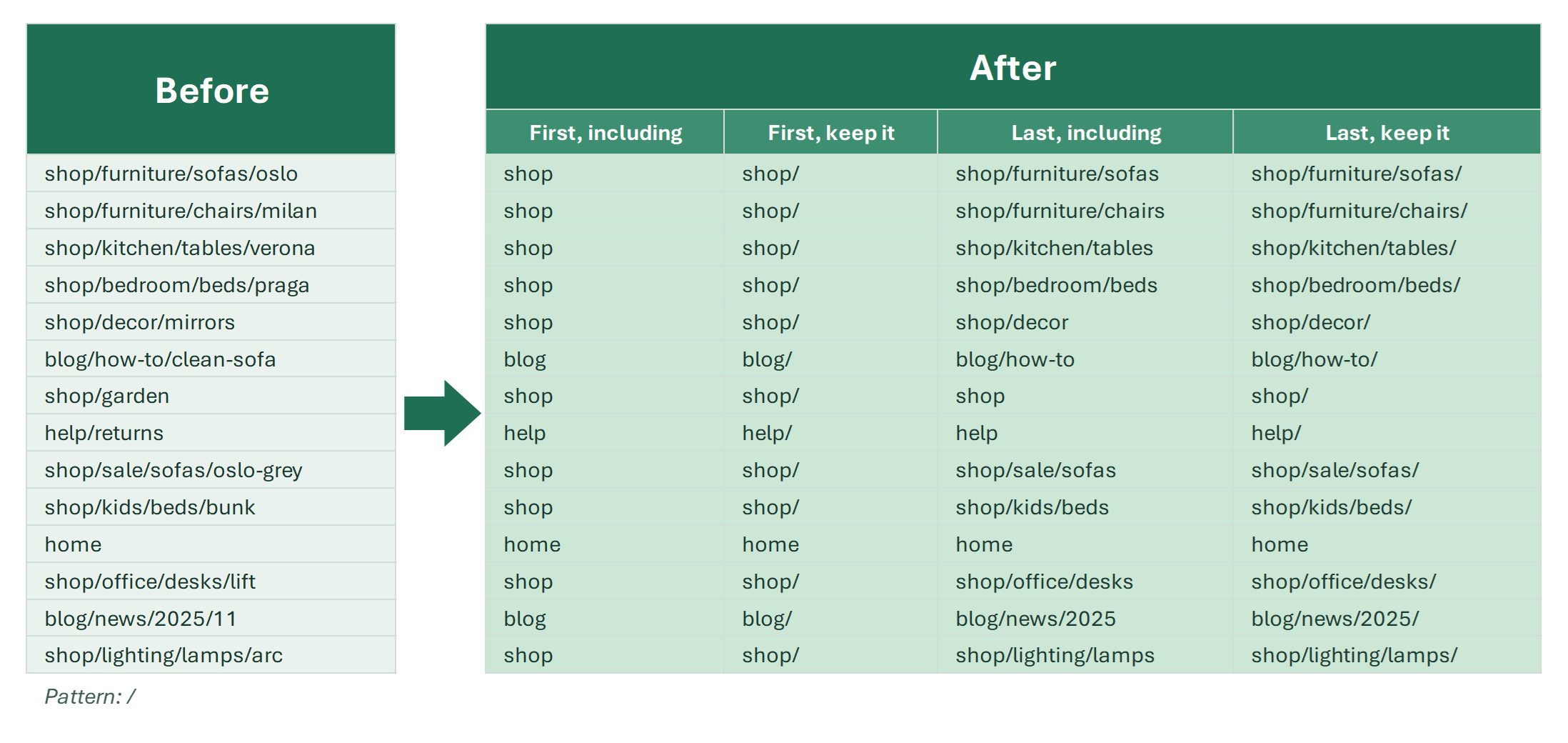
The formulas work, but you have to remember them, type them in, drag them down, paste values and delete the helper column. For lists that come back every week, I made four tools in !SEMTools that work right in the source cells:
- Select the cells or the whole column.
- On the !SEMTools tab, open DELETE → Characters → After occurence...
- Choose First or Last, then Including (the character goes too) or Everything after it (the character stays).
- Type the character or a sequence of characters and click OK.
Voilà. With “Output to the next column” ticked, the source stays as is and the result lands next to it.
- The pattern can be a whole word or a sequence, such as “ USD” or “?utm”.
- Cells without the character stay unchanged, no errors.
- The first occurrence is matched regardless of case, the last one is case-sensitive.
- The result is written as text. If a number is left (“12.5 lb” → “12.5”), convert it back with Numbers as text → to numbers.
Why text after a character isn’t deleted: common mistakes
- #VALUE! — the character isn’t in the cell. Use IFERROR or the sixth argument of TEXTBEFORE.
- A trailing space is left — there was a space before the comma. TRIM or removing extra spaces fixes it.
- Find and Replace deleted too much — the data contains “*” or “?”, or no column was selected.
- Case — SEARCH ignores case, FIND doesn’t. Use FIND if “B” and “b” must be different.
Delete text after a character: FAQ
How do I delete everything after a comma in Excel?
Select the column, press Ctrl+H, type “,*” in Find what, leave Replace with empty and click Replace All. With a formula: =LEFT(A2,SEARCH(",",A2)-1).
How do I keep the character itself?
In Find and Replace, put the character in Replace with (“,*” → “,”). In the formula, drop the −1: =LEFT(A2,SEARCH(",",A2)).
How do I delete text after the last space?
In Excel 365: =TEXTBEFORE(A2," ",-1). In older versions, use LEFT with SUBSTITUTE swapping the last space for CHAR(1).
Delete text after the first or last occurrence of a character or word, keeping it or not, right in the source cells, without formulas or helper columns.
!SEMTools solves this and hundreds of other tasks in a couple of clicks!
Summary: which method to choose
I hope you found what you were looking for on this page and were able to trim the extra text in your cells. For a one-off cut at the first occurrence, Find and Replace with “,*” is enough. For results that recalculate, use LEFT + SEARCH or TEXTBEFORE. For anything regular, and for the last occurrence in place, !SEMTools does it in 2 clicks.
You may also be interested in related operations: remove the last N characters and extract text before a character.