To extract text after a character in Excel, use =MID(A2,SEARCH(",",A2)+1,LEN(A2)), or =TEXTAFTER(A2,",") in Excel 365. It takes the tail of the string: a file name from a path, the last part of a URL, a domain after “@”. The !SEMTools tool After substring... returns the text after the last occurrence of a character for the whole column, without formulas.
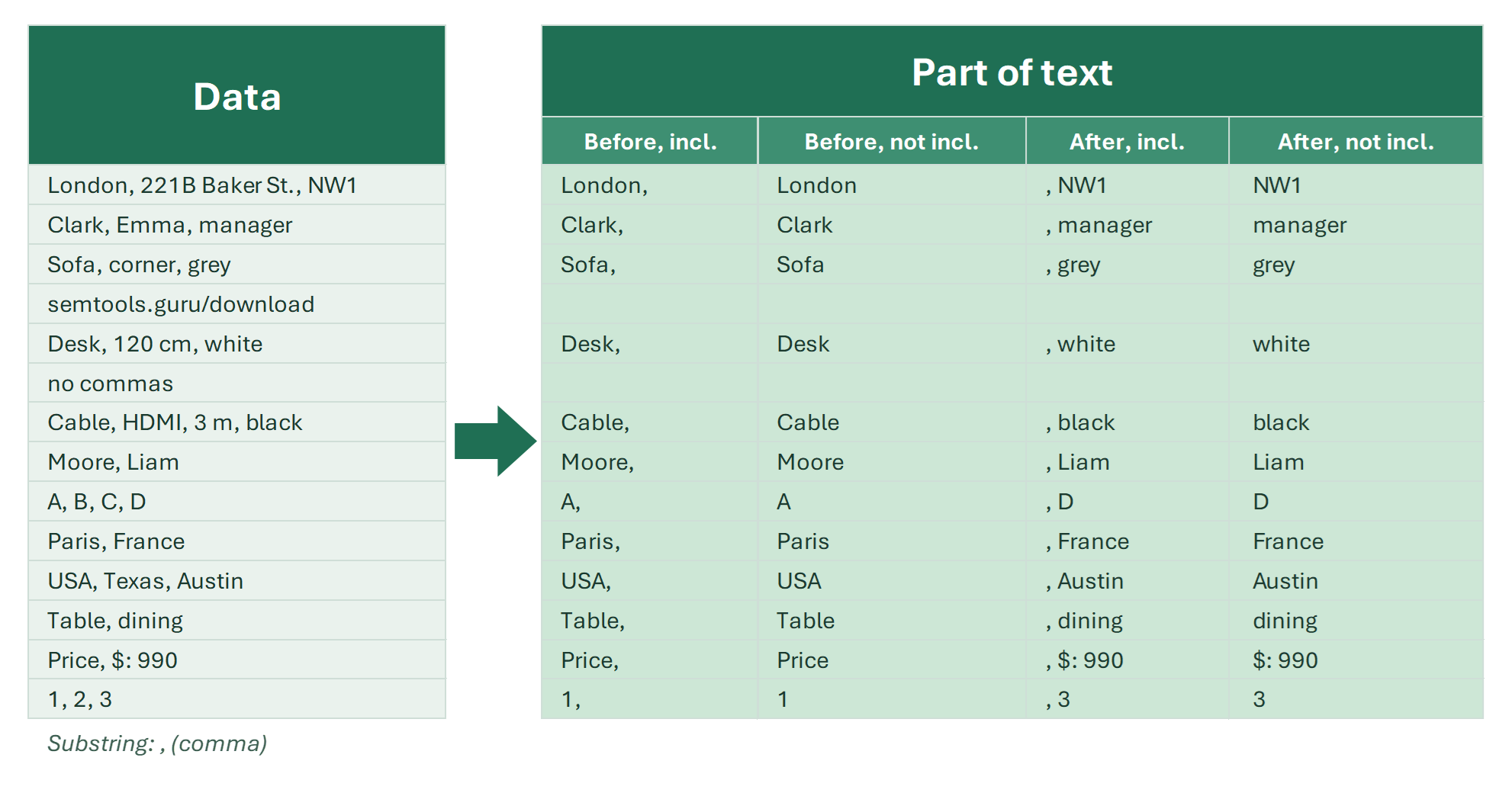
If you want to delete the tail rather than extract it, see how to delete text after a character. For the start of the string, see how to extract text before a character.
When you need the text after a character
First decide which occurrence you mean. “After the comma” in “Smith, John” is after the first and only comma. A file name in “C:\Reports\2025\november.xlsx” is after the last backslash. Typical tasks:
- The last segment of a path or URL: “catalog/furniture/sofas/oslo” → “oslo”.
- A file name from a full path, after the last “\”.
- An email domain: “john.smith@gmail.com” → “gmail.com”.
- A first name after a comma: “Smith, John” → “John”.
- A file extension, after the last dot: “report.final.xlsx” → “xlsx”.
Extract text after the first character with a formula
MID starts right after the character and takes LEN(A2) characters, which is always enough:
=MID(A2,SEARCH(",",A2)+1,LEN(A2))
It returns everything after the first comma, including the space after it, which TRIM removes. RIGHT gives the same result: =RIGHT(A2,LEN(A2)-SEARCH(",",A2)). Drop the +1 to keep the character, and add IFERROR for cells without it.
TEXTAFTER in Excel 365
In Excel 365 and Excel 2024 it’s one function. Instance −1 means after the last occurrence:
=TEXTAFTER(A2,"/",-1,,,"")
Extract text after the last occurrence of a character
In older Excel versions there is a neat trick I like for its brevity: replace every separator with 100 spaces, take the 100 rightmost characters and trim the spaces.
=TRIM(RIGHT(SUBSTITUTE(A2,"/",REPT(" ",100)),100))
Why does it work? After SUBSTITUTE and REPT, there are 100 spaces before the last segment, so the 100 rightmost characters contain only that segment and spaces. The limit: the segment must be shorter than 100 characters, and double spaces inside it collapse.
| A | B | |
|---|---|---|
| 1 | Path | After last “/” |
| 2 | catalog/furniture/sofas/oslo | oslo=TRIM(RIGHT(SUBSTITUTE(A2,"/",REPT(" ",100)),100)) |
| 3 | blog/2025/11/news | news=TRIM(RIGHT(SUBSTITUTE(A3,"/",REPT(" ",100)),100)) |
| 4 | C:/Reports/2025/november.xlsx | november.xlsx=TRIM(RIGHT(SUBSTITUTE(A4,"/",REPT(" ",100)),100)) |
| 5 | home | home=TRIM(RIGHT(SUBSTITUTE(A5,"/",REPT(" ",100)),100)) |
Without the character, the REPT trick returns the whole cell; TEXTAFTER and !SEMTools return nothing.
Extract text after a character in 2 clicks with !SEMTools
Every formula above has to be remembered, typed, dragged down and pasted as values. In !SEMTools it’s one button that works in place:
- Select the cells or the column.
- Open EXTRACT → Characters → After substring...
- Choose First from right, including (the character stays at the start of the result) or First from right, not including.
- Type the character or text and click OK.
“First from right” means the last occurrence in the cell, exactly what you need for paths, URLs and file names. For the text after the first occurrence, use DELETE → Characters → To occurence... → First → Including, which leaves exactly the tail.
- Cells without the character become empty, so you see where it was missing.
- The search is case-sensitive.
- The separator can be a word or a sequence, such as “ - ” or “://”.
Why text after a character isn’t extracted: common mistakes
- A leading space — the data has a space after the comma; wrap the result in TRIM.
- You got the text after the first character, not the last — SEARCH always finds the first one; use the REPT trick or TEXTAFTER with −1.
- The REPT formula cut the result — the segment is longer than 100 characters; raise both numbers, for example to 500.
Extract text after a character: FAQ
How do I get the text after a comma in Excel?
Use =TRIM(MID(A2,SEARCH(",",A2)+1,LEN(A2))), or =TRIM(TEXTAFTER(A2,",")) in Excel 365.
How do I get a file name from a full path?
Take the text after the last backslash: =TRIM(RIGHT(SUBSTITUTE(A2,"\",REPT(" ",100)),100)).
How do I extract the domain from an email?
Text after “@”: =MID(A2,SEARCH("@",A2)+1,LEN(A2)), or =TEXTAFTER(A2,"@") in Excel 365.
Extract the last segment of a path, a file name or a domain, everything after the last occurrence of a character, in a couple of clicks, right in place or into the next column.
!SEMTools solves this and hundreds of other tasks in a couple of clicks!
Summary: how to extract text after a character
I hope you found what you were looking for on this page and were able to get the part of the string you need. For text after the first character, MID + SEARCH works; for the last one, the REPT trick or TEXTAFTER with −1 in Excel 365. If you do this regularly, !SEMTools saves the time: no formulas, no dragging, no pasting values.
You may also be interested in related operations: extract the last N characters and extract numbers from text.