To extract text before a character in Excel, use =LEFT(A2,SEARCH(",",A2)-1), or =TEXTBEFORE(A2,",") in Excel 365. It takes the start of the string, such as a city from an address or a username from an email, and keeps the source cell intact. Without formulas, the !SEMTools tool Before substring... does it for the whole column at once.
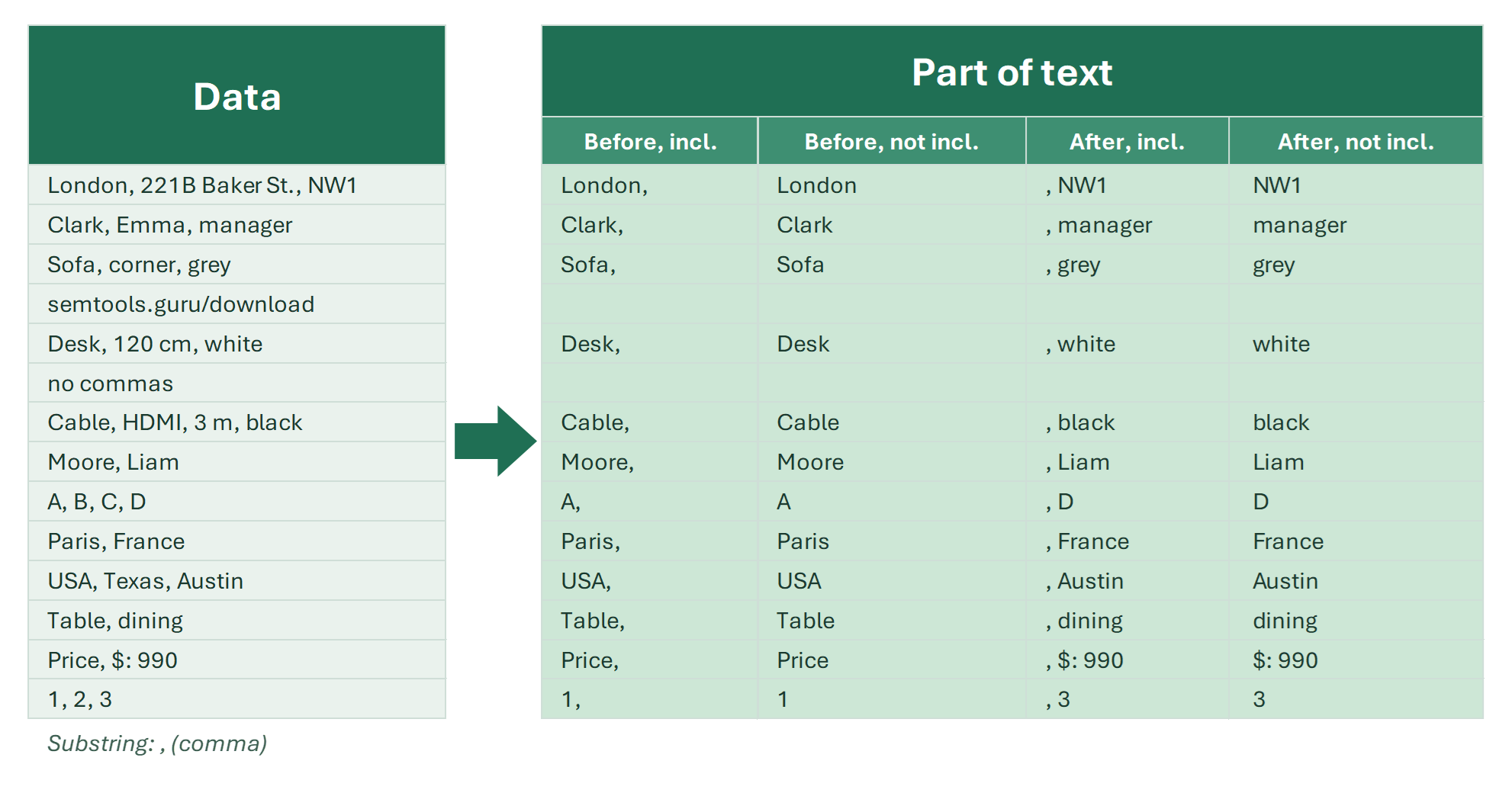
If you’d rather cut the cells in place, see how to delete text after a character. To get the second half of the string, see how to extract text after a character.
Why extract text before a character
Extracting means the source stays and the part you need appears next to it, which makes the result easy to check, filter and pivot. Typical cases:
- A city from an address: “Austin, 512 Main St” → “Austin”.
- A last name from “Smith, John” → “Smith”.
- A base SKU without a variant: “A-1024/RED” → “A-1024”.
- A username from an email: “john.smith@gmail.com” → “john.smith”.
- The first word of a phrase, where the boundary is a space; there is a dedicated tool for that, see how to get the first words.
Extract text before a character with a formula
SEARCH finds the character, LEFT takes everything before it:
=LEFT(A2,SEARCH("@",A2)-1)
This formula returns everything before “@” in an email address. Drop the −1 to include the character. When the character is missing you get #VALUE!; for extraction an empty result is usually the clearest:
=IFERROR(LEFT(A2,SEARCH("@",A2)-1),"")
TEXTBEFORE in Excel 365
TEXTBEFORE is shorter and takes an instance number: 2 for the second occurrence, −1 for the last one. =TEXTBEFORE(A2,"/",-1,,,"") returns everything before the last slash, or nothing if there is no slash.
| A | B | C | |
|---|---|---|---|
| 1 | Data | Before comma | Including comma |
| 2 | Austin, 512 Main St | Austin=IFERROR(LEFT(A2,SEARCH(",",A2)-1),"") | Austin,=IFERROR(LEFT(A2,SEARCH(",",A2)),"") |
| 3 | Smith, John | Smith=IFERROR(LEFT(A3,SEARCH(",",A3)-1),"") | Smith,=IFERROR(LEFT(A3,SEARCH(",",A3)),"") |
| 4 | Table, dining | Table=IFERROR(LEFT(A4,SEARCH(",",A4)-1),"") | Table,=IFERROR(LEFT(A4,SEARCH(",",A4)),"") |
| 5 | no commas | =IFERROR(LEFT(A5,SEARCH(",",A5)-1),"") | =IFERROR(LEFT(A5,SEARCH(",",A5)),"") |
The row without a comma returns an empty result, just like the !SEMTools tool.
Split a cell at a character without formulas
Text to Columns (Data → Text to Columns → Delimited) cuts a cell into columns at the character. To be fair, it cuts at every occurrence and overwrites the columns to the right, so check that they are empty. Flash Fill (Ctrl+E) guesses the pattern from one typed example; it’s handy, but on unusual rows it can fail silently, so check the result.
Extract text before a character in 2 clicks with !SEMTools
No formulas, no IFERROR, no pasting values. The !SEMTools tool works on the whole selection at once:
- Select the cells or the column.
- Open EXTRACT → Characters → Before substring...
- Choose First from left, including (the character stays in the result) or First from left, not including.
- Type the character or text and click OK.
Tick “Output to the next column” to keep the source and get the result next to it.
- If the character isn’t in a cell, the result is empty, with no #VALUE!.
- The separator can be a word, such as “ St” or “ size”.
- The search is case-sensitive.
- Need everything before the last occurrence? DELETE → Characters → After occurence... → Last → Including leaves exactly that.
Why text before a character isn’t extracted: common mistakes
- #VALUE! — the character is missing; add IFERROR or use the sixth argument of TEXTBEFORE.
- A trailing space — there was a space before the separator; wrap the result in TRIM.
- The wrong part came out — the separator appears earlier than you thought, for example a comma inside “Apt 4, Floor 2”.
- A number became text — LEFT always returns text; add a double minus: =--LEFT(A2,SEARCH(" ",A2)-1).
Extract text before a character: FAQ
How do I extract text before a space in Excel?
Use =LEFT(A2,SEARCH(" ",A2)-1), or =TEXTBEFORE(A2," ") in Excel 365.
What’s the difference between extracting and deleting after a character?
When the character is there, the result is the same. When it isn’t, extracting returns an empty cell, while deleting leaves the text unchanged.
How do I get text before the last slash?
In Excel 365: =TEXTBEFORE(A2,"/",-1). In older versions, use LEFT with SUBSTITUTE, as shown in the article on deleting text after a character.
Extract the part before a comma, slash or word in the whole column, with or without the character, in a couple of clicks, without formulas or error checks.
!SEMTools solves this and hundreds of other tasks in a couple of clicks!
Summary: how to extract text before a character
I hope you found what you were looking for on this page and were able to pull out the part of the string you need. If the result must recalculate, use LEFT + SEARCH or TEXTBEFORE. For one-off and regular cleanup of big columns, !SEMTools is faster: select, two clicks, done, with nothing to paste as values afterwards.
You may also be interested in related operations: extract the first N characters and delete text up to a character.