| Function category | Text |
| Volatility | Non-volatile |
What does the EXACT function do?
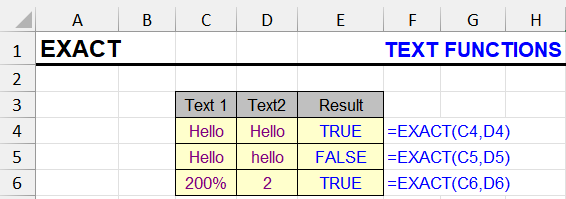
This function compares two text items and determines if they are exactly the same.
Character case is considered - only words written identically and having upper and lower case characters in the same positions will be considered equal.
EXACT function syntax
=EXACT(text1, text2)| A | B | C | D | |
|---|---|---|---|---|
| 1 | Text 1 | Text 2 | EXACT | = operator |
| 2 | Apple | Apple | TRUE=EXACT(A2,B2) | TRUE=A2=B2 |
| 3 | Apple | apple | FALSE=EXACT(A3,B3) | TRUE=A3=B3 |
| 4 | Apple | Apple· | FALSE=EXACT(A4,B4) | FALSE=A4=B4 |
| 5 | 2 | 200% | TRUE=EXACT(A5,B5) | TRUE=A5=B5 |
The = operator ignores case, EXACT doesn’t. A trailing space (·) breaks both. 200% is the number 2, so it equals 2 for both checks.
Only two arguments can be compared.
EXACT: result and input format
Like all text functions, the function converts numeric format to natural numbers before comparison. Therefore, the function considers 200% and 2 (initially in numeric format) as matching text values.
This applies to formatting as date, date-time, time, percentage, and financial format.
EXACT function usage examples
The function can be convenient when you need to find letters in a specific case in a cell - for example, uppercase or lowercase.
Find any uppercase letters
To search for uppercase letters, we'll use logic and the LOWER function.
The logic is as follows:
- convert the cell value to lowercase
- compare the result with the original cell value
- if FALSE is returned - there was at least one uppercase letter
- Voila!
Here's the formula:
=NOT(EXACT(LOWER(A1), A1))Find any lowercase letters
Here's a similar formula, but with the UPPER function:
=NOT(EXACT(UPPER(A1), A1))Find if there are letters in a cell
If you check whether the cell values in uppercase and lowercase match, you can identify if there are letters in it. If a letter was in lowercase, it will become uppercase, and if in uppercase - lowercase, and only if there are no letters in the cell, it will remain the same as it was. Hieroglyphs don't count.
Makes sense, right? :)
The corresponding formula:
=NOT(EXACT(UPPER(A1), LOWER(A1)))| A | B | C | D | |
|---|---|---|---|---|
| 1 | Text | Has uppercase | Has lowercase | Has letters |
| 2 | report | FALSE=NOT(EXACT(LOWER(A2),A2)) | TRUE=NOT(EXACT(UPPER(A2),A2)) | TRUE=NOT(EXACT(UPPER(A2),LOWER(A2))) |
| 3 | Report | TRUE=NOT(EXACT(LOWER(A3),A3)) | TRUE=NOT(EXACT(UPPER(A3),A3)) | TRUE=NOT(EXACT(UPPER(A3),LOWER(A3))) |
| 4 | REPORT | TRUE=NOT(EXACT(LOWER(A4),A4)) | FALSE=NOT(EXACT(UPPER(A4),A4)) | TRUE=NOT(EXACT(UPPER(A4),LOWER(A4))) |
| 5 | 2025-10 | FALSE=NOT(EXACT(LOWER(A5),A5)) | FALSE=NOT(EXACT(UPPER(A5),A5)) | FALSE=NOT(EXACT(UPPER(A5),LOWER(A5))) |
| 6 | № 5 | FALSE=NOT(EXACT(LOWER(A6),A6)) | FALSE=NOT(EXACT(UPPER(A6),A6)) | FALSE=NOT(EXACT(UPPER(A6),LOWER(A6))) |
Each check compares the text with a case-converted copy. Text without letters (“2025-10”, “№ 5”) looks the same in UPPER and LOWER, so the last column is FALSE.
See also:
- Sentence case in Excel: capitalize first letter in all cells
- Count characters inside cells
- Find cells by several conditions in Excel
Like the article? Help its author! Buy !SEMTools, it has lots of useful instruments to process text data.