| Function category | Lookup and reference functions |
| Volatility | Non-volatile |
| Similar functions | ADDRESS, INDIRECT |
This is an article about the HYPERLINK function. See also our guide on similar procedures and other tools: "10 ways to create a hyperlink in Excel".
What does the HYPERLINK function do
The HYPERLINK function creates clickable hyperlinks in Excel cells — to websites, documents, sheets, files, folders, messengers, or even executable files. It's useful because it allows you to specify both the path and custom display text — making links more understandable and visually appealing.
When clicked, Excel passes the path to the operating system, which opens the requested resource — whether it's a website, document, folder, or application.
Hyperlinks created with this function look identical to manually inserted ones via right-click menu or Insert → Link tab, but offer much more flexibility when working with data.
HYPERLINK function syntax
=HYPERLINK(link_location, [friendly_name])- link_location — path to the resource (website, file, folder, range, sheet, macro, etc.)
- friendly_name — optional text that will display in the cell instead of the actual address
If you don't specify friendly_name, Excel will display the address itself. Both arguments can be built using other Excel functions — referencing cell values, assembling URLs from parts, etc.
HYPERLINK formula examples
Website hyperlink
Which function would you use to add a website link to a cell? Of course, HYPERLINK:
=HYPERLINK("https://semtools.guru", "Go to website")
| A | B | C | |
|---|---|---|---|
| 1 | Address | Label | Link |
| 2 | https://semtools.guru | Go to website | Go to website=HYPERLINK("https://semtools.guru","Go to website") |
| 3 | https://semtools.guru/download/ | https://semtools.guru/download/=HYPERLINK(A3) | |
| 4 | https://semtools.guru/buy/ | Buy | Buy=HYPERLINK(A4,B4) |
Without a label the cell shows the address itself. The address and the label can come from neighboring cells — fill the formula down and you get links for the whole list. Links are shown in green in this demo; in Excel they are blue and underlined, and a click opens the address.
File and folder hyperlinks
The HYPERLINK function can open folders and even launch .exe files — without macros or add-ins. This can be convenient for creating control panels within workbooks. However, since this isn't secure, Excel will warn you with a pop-up notification.
Hyperlink to Excel file:
=HYPERLINK("C:\Users\User\Documents\Report.xlsx", "Open report")
Network file:
=HYPERLINK("\\Server01\Projects\Plan.xlsx", "Project plan")
Link to computer folder:
=HYPERLINK("C:\Users\User\Downloads\", "Open downloads folder")
| A | B | |
|---|---|---|
| 1 | What we open | Link |
| 2 | File on disk | Open report=HYPERLINK("C:\Users\User\Documents\Report.xlsx","Open report") |
| 3 | Network file | Project plan=HYPERLINK("\\Server01\Projects\Plan.xlsx","Project plan") |
| 4 | Folder | Open downloads folder=HYPERLINK("C:\Users\User\Downloads\","Open downloads folder") |
| 5 | Folder + file name from a cell | Invoice_154.pdf=HYPERLINK("C:\Invoices\"&"Invoice_154.pdf","Invoice_154.pdf") |
A folder path ends with a backslash. A network path starts with two backslashes: \\Server. If the file doesn’t exist, Excel shows “Cannot open the specified file” only on click — the formula itself returns no error.
Internal Excel hyperlinks
Hyperlink to cell on current sheet:
=HYPERLINK("#A1", "To top")
Hyperlink to range on current sheet:
=HYPERLINK("#B2:B10", "To table")
Hyperlink to different sheet:
=HYPERLINK("#Sheet2!A1", "Open Sheet2")
With sheet name in quotes (if it contains spaces):
=HYPERLINK("#'Analytics 2024'!C5", "Go to analytics")
Hyperlink to different workbook (if open):
=HYPERLINK("[Finance.xlsx]Data!A1", "To finances")
If workbook is closed — specify full path:
=HYPERLINK("C:\Reports\[Finance.xlsx]Data!A1", "Open cell in file")
Hyperlink with dynamic sheet name from cell:
=HYPERLINK("#'"&A1&"'!A1", "Go to sheet "&A1)
| A | B | C | |
|---|---|---|---|
| 1 | Sheet | Link | Address |
| 2 | Sheet2 | Open Sheet2=HYPERLINK("#Sheet2!A1","Open Sheet2") | #Sheet2!A1 |
| 3 | Analytics 2024 | Go to analytics=HYPERLINK("#'Analytics 2024'!C5","Go to analytics") | name with a space — in apostrophes |
| 4 | January | Go to sheet January=HYPERLINK("#'"&A4&"'!A1","Go to sheet "&A4) | sheet name from A4 |
| 5 | To top=HYPERLINK("#A1","To top") | #A1 — this sheet |
# means “in this workbook”. Apostrophes around the sheet name can always be used — they also work for names without spaces. With a list of sheet names in column A, this builds a table of contents with one formula.
Hyperlink to named range:
=HYPERLINK("#January_Sales", "To January sales")
| A | B | |
|---|---|---|
| 1 | Target | Link |
| 2 | Named range | To January sales=HYPERLINK("#January_Sales","To January sales") |
| 3 | Excel table | Open Table1=HYPERLINK("#Table1","Open Table1") |
| 4 | Table column | Client column=HYPERLINK("#Table1[Client]","Client column") |
| 5 | Range | To table=HYPERLINK("#B2:B10","To table") |
On click Excel selects the whole named range or table column, not just one cell. If you rename the table or the name, the link stops working: unlike normal formulas, the address text isn’t updated.
Links to email, messengers, apps and macros
Excel supports not only website and document hyperlinks, but also special protocols:
mailto:tg://viber://
and others.
Email hyperlink:
=HYPERLINK("mailto:support@semtools.guru", "Contact support")
Email with subject and body:
=HYPERLINK("mailto:support@semtools.guru?subject=Error&body=Hello! I found an error!", "Report error")
Telegram channel hyperlink:
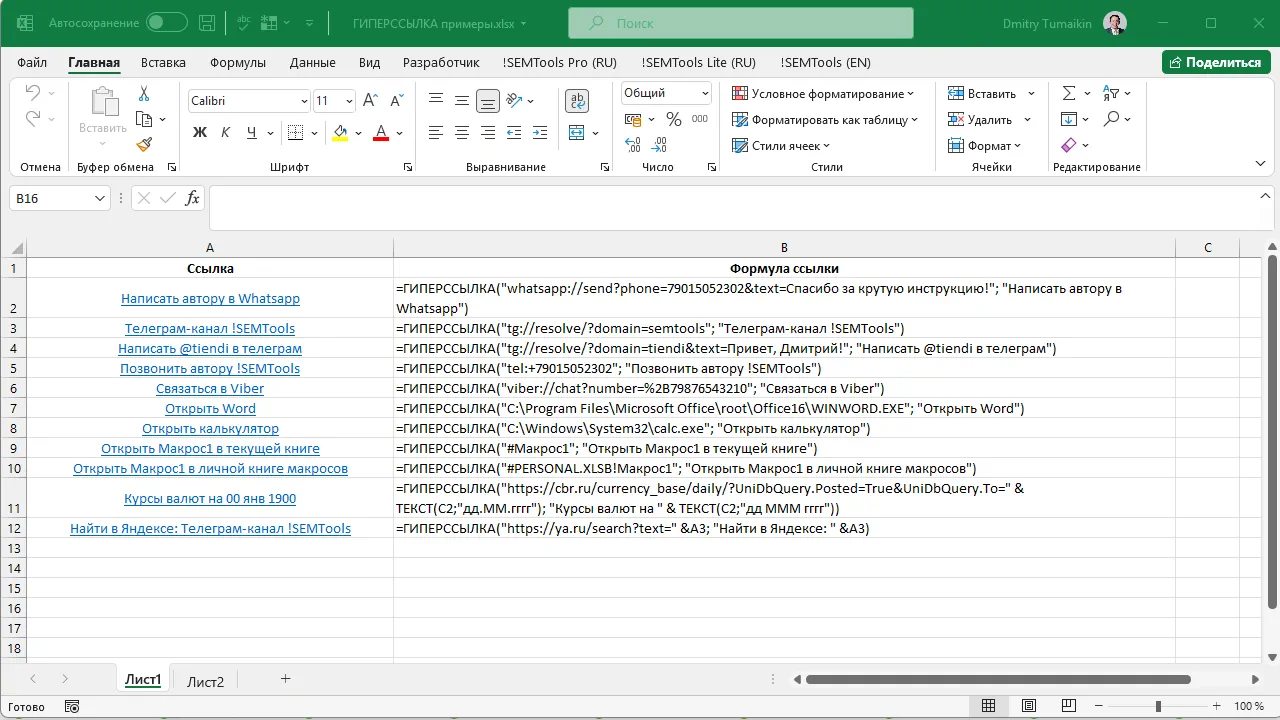
=HYPERLINK("tg://resolve/?domain=semtools", "!SEMTools Telegram channel")
WhatsApp chat by number:
=HYPERLINK("https://wa.me/79015052302", "Message author on WhatsApp")
Call link (on mobile devices or if Windows-phone connection is configured):
=HYPERLINK("tel:+74951234567", "Call office")
| A | B | |
|---|---|---|
| 1 | Channel | Link |
| 2 | Contact support=HYPERLINK("mailto:support@semtools.guru","Contact support") | |
| 3 | Email with subject | Report error=HYPERLINK("mailto:support@semtools.guru?subject="&ENCODEURL("Error found"),"Report error") |
| 4 | Telegram | !SEMTools Telegram channel=HYPERLINK("tg://resolve/?domain=semtools","!SEMTools Telegram channel") |
| 5 | Message on WhatsApp=HYPERLINK("https://wa.me/"&"79015052302","Message on WhatsApp") | |
| 6 | Phone | Call office=HYPERLINK("tel:+74951234567","Call office") |
mailto: opens the default email app, tg: and whatsapp: — the installed apps. A subject or body with spaces and special characters is safer to encode with ENCODEURL (Excel 2013+). For wa.me the phone number is digits only, without + or spaces.
Dynamic hyperlinks
Hyperlinks can be built dynamically — depending on cell values, formulas, and conditions. This is especially useful for creating links to search, profiles, documents, reports, and other resources that change from row to row.
Example: building a website search link based on value in cell A2:
=HYPERLINK("https://google.com/search?q="&A2, "Search Google: "&A2)
Or hyperlink based on condition (using IF function):
=IF(B2="PDF",
HYPERLINK("https://site.com/files/"&A2&".pdf", "PDF file"),
"")
| A | B | C | |
|---|---|---|---|
| 1 | Query / file | Type | Link |
| 2 | remove spaces excel | Search Google: remove spaces excel=HYPERLINK("https://google.com/search?q="&ENCODEURL(A2),"Search Google: "&A2) | |
| 3 | price-2026 | PDF file=IF(B3="PDF",HYPERLINK("https://site.com/files/"&A3&".pdf","PDF file"),"") | |
| 4 | price-2025 | XLSX | =IF(B4="PDF",HYPERLINK("https://site.com/files/"&A4&".pdf","PDF file"),"") |
The address is glued together with & from a fixed part and a cell value. Inside IF the link appears only when the condition is met, otherwise the cell is empty. For queries with spaces and special characters wrap the value in ENCODEURL.
This way, unique hyperlinks can be generated for each row in a table, automatically substituting URL parameters, filenames, and other variables.
HYPERLINK with relative and absolute paths
The HYPERLINK function can use both absolute and relative paths to files and folders. This determines whether the link will work when the workbook is moved or sent to other users.
Absolute path
Absolute path example:
=HYPERLINK("C:\Users\User\Documents\Report.xlsx", "Open file")
Such links only work on computers where the file actually exists at the specified path. Move the workbook to another computer — the path "breaks".
Relative path
If the file being linked is in the same folder as the Excel workbook, you can specify just the filename:
=HYPERLINK("Report.xlsx", "Open adjacent file")
Or navigate to subfolder:
=HYPERLINK("archive\2024.xlsx", "File in archive folder")
| A | B | |
|---|---|---|
| 1 | Path | Link |
| 2 | absolute | Open file=HYPERLINK("C:\Users\User\Documents\Report.xlsx","Open file") |
| 3 | next to the workbook | Open adjacent file=HYPERLINK("Report.xlsx","Open adjacent file") |
| 4 | subfolder | File in archive folder=HYPERLINK("archive\2024.xlsx","File in archive folder") |
A relative path is counted from the folder where the current workbook is saved, so you can move the whole folder with the files — the links won’t break.
Such links continue to work even if the workbook folder is moved or renamed — as long as the relative file locations remain the same.
Potential issues
- If you open the Excel file from an archive or email — relative paths won't work
- Some cloud storage services (like OneDrive) substitute their own absolute paths — links may break when downloading local copies
- Excel may "remember" the absolute file path when first opened, even if the formula specifies relative — especially in older Office versions
It's recommended to test relative links when sharing files with other users or working in teams.
HYPERLINK interactivity and formatting
Excel hyperlinks aren't limited to underlined text. There are many ways to visually style links to make them more noticeable, understandable, or conversely, hidden from users.
Color and formatting
Excel applies the "Hyperlink" style by default — blue color with underline. This can be changed:
- Home tab → Styles → Cell Styles
- Right-click on "Hyperlink" style → Modify
Here you can set color, font, underline, and other parameters for both normal and followed link states.
Hidden hyperlinks
Sometimes you don't want hyperlinks to appear as links. This can be done by:
- Setting the link color to match the background (e.g., white text on white background)
- Manually removing underline (via format)
- Placing hyperlink in a cell with a symbol, icon, or number
Hyperlinks with icons
You can use hyperlinks with symbol or icon values (like 🔗 or 📎):
=HYPERLINK("https://semtools.guru", "🔗")
| A | B | |
|---|---|---|
| 1 | Site | Link |
| 2 | semtools.guru | 🔗=HYPERLINK("https://"&A2,"🔗") |
| 3 | google.com | 🔗=HYPERLINK("https://"&A3,"🔗") |
A compact column of links: the label is an emoji or symbol, the address comes from the neighboring cell.
You can also use emoji, Unicode special characters.
HYPERLINK use cases
Hyperlinks in Excel aren't just for websites. They become especially useful combined with analytics, filters, reports, and interactive tables.
Links in checklists and registries
If you have a task table, checklist, or journal, hyperlinks help quickly open related documents, templates, forms, folders, or even launch specific processes. Example:
=HYPERLINK("https://docs.site.com/task?id="&A2, "Task #"&A2)
Links to filtered reports
If your reporting system supports URL filtering (like Power BI, Looker Studio, Metabase), you can dynamically build links with filters:
=HYPERLINK("https://dashboard.site.com/report?manager="&A2, "Report for manager "&A2)
| A | B | |
|---|---|---|
| 1 | Task / manager | Link |
| 2 | 381 | Task #381=HYPERLINK("https://docs.site.com/task?id="&A2,"Task #"&A2) |
| 3 | Smith | Report for manager Smith=HYPERLINK("https://dashboard.site.com/report?manager="&A3,"Report for manager "&A3) |
Filter parameters go into the address after ?. If the value can contain spaces or special characters, wrap it in ENCODEURL.
Hyperlink with variable logic (using VLOOKUP)
One of the most convenient methods — use a dropdown with link texts, while URLs come from a reference table using VLOOKUP function. This is great for creating navigation menus within Excel workbooks and saving space.
Step 1: Links table
Create a helper table somewhere nearby or on a separate sheet (you can even hide it):
| Text | URL |
|---|---|
| Buy | https://semtools.guru/buy |
| Download | https://semtools.guru/download |
| Author | https://semtools.guru/author |
Step 2: Dropdown list
Create a selection list in cell A2:
- Data → Data Validation → List
- Source:
Buy,Download,Author
Step 3: Hyperlink formula
In adjacent cell (C2) use the formula:
=IFERROR(
HYPERLINK(
VLOOKUP(A2, $F$2:$G$4, 2, FALSE),
A2),
"")
| A | B | C | D | E | F | G | |
|---|---|---|---|---|---|---|---|
| 1 | Choice | Link | Text | URL | |||
| 2 | Download | Download=IFERROR(HYPERLINK(VLOOKUP(A2,$F$2:$G$4,2,FALSE),A2),"") | Buy | https://semtools.guru/buy | |||
| 3 | Author | Author=IFERROR(HYPERLINK(VLOOKUP(A3,$F$2:$G$4,2,FALSE),A3),"") | Download | https://semtools.guru/download | |||
| 4 | Help | =IFERROR(HYPERLINK(VLOOKUP(A4,$F$2:$G$4,2,FALSE),A4),"") | Author | https://semtools.guru/author |
VLOOKUP finds the address for the selected text, HYPERLINK turns it into a link, and the selected item itself is the label. If the text isn’t in the table (row 4), VLOOKUP returns #N/A and IFERROR leaves the cell empty.
Here $F$2:$G$4 is the links table range, A2 is the selected text. As a result, C2 will show an active hyperlink with text matching the selected item.
See also:
Like the article? Help its author! Buy !SEMTools, it has lots of useful instruments to process text data.